CloudVision AGNI Appliance Access
This section discusses the following topic:
iDRAC
iDRAC is a GUI based IPMI running on a separate out of band CPU used for monitoring the hardware appliance.
Web Access into iDRAC (System IPMI)
iDRAC supports the following browsers:
- Mozilla Firefox
- Google Chrome
- Safari
- Microsoft Edge
On the management station, open the Web browser and connect to the iDRAC7 using: https://<hostname or IP of iDRAC>.
For example: https://192.168.0.120.
The Login page appears.
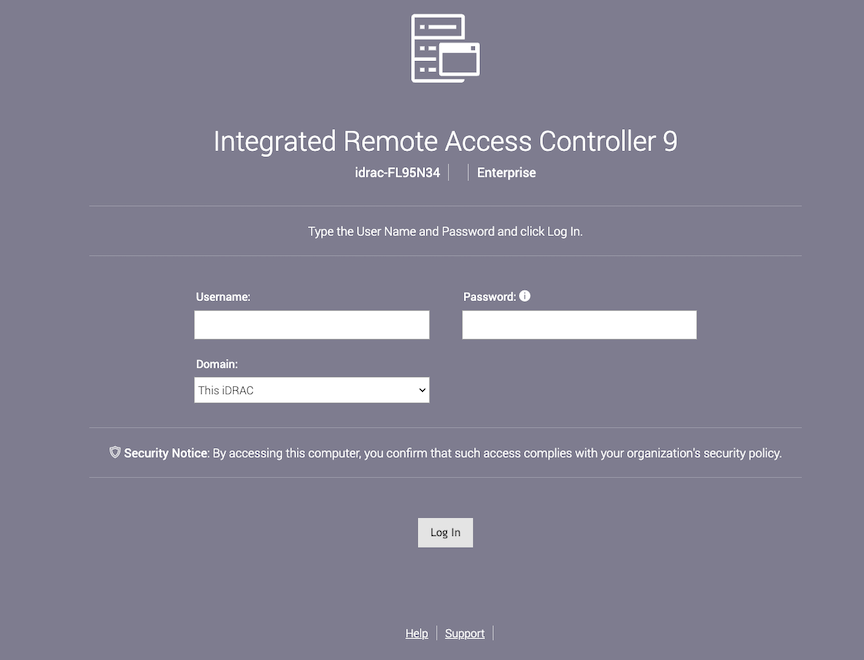
Login using the default username and password, which are:
- Username: root
- Password: Default Password is available on the label. Refer to the Locate the MAC Addresses for the AGNI Appliance section.
Note: Both the username and password are case-sensitive.
Log in to iDRAC using a web console and iDRAC credentials. Navigate to Virtual Console and access the Host console.
Figure 2. Access Virtual Console
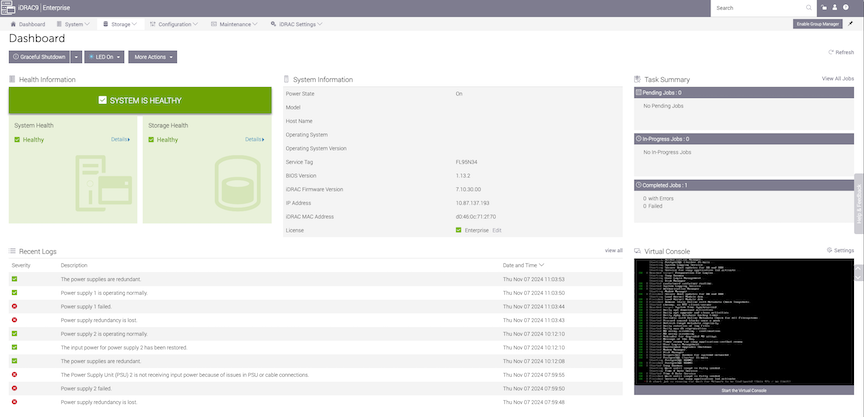
Enter the default login credentials. For details, see the DCA-AGNI-100 Appliance Setup & Access Guide on Arista website.
Changing iDRAC Password
You can change the iDRAC password by one of the following methods:
Changing iDRAC Password using Web GUI
To change the password through the iDRAC web interface using web GUI, complete the following steps:
- On the iDRAC web interface, navigate to tab.
Figure 3. iDRAC Settings page 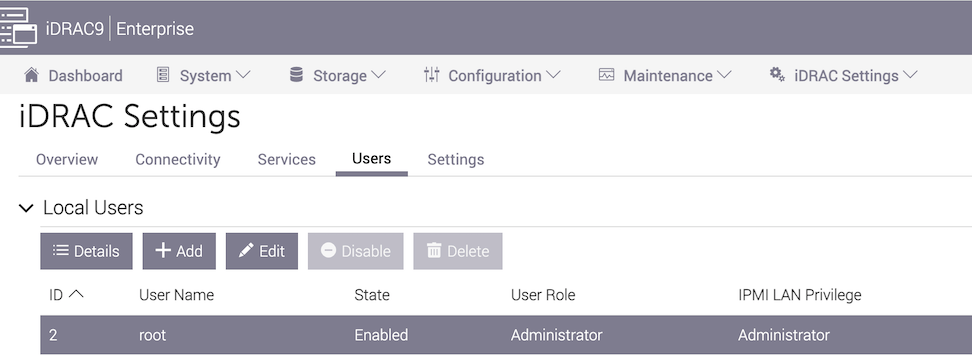
- In the ID column, select user ID 2 and click Edit.
Figure 4. Edit User Credentials 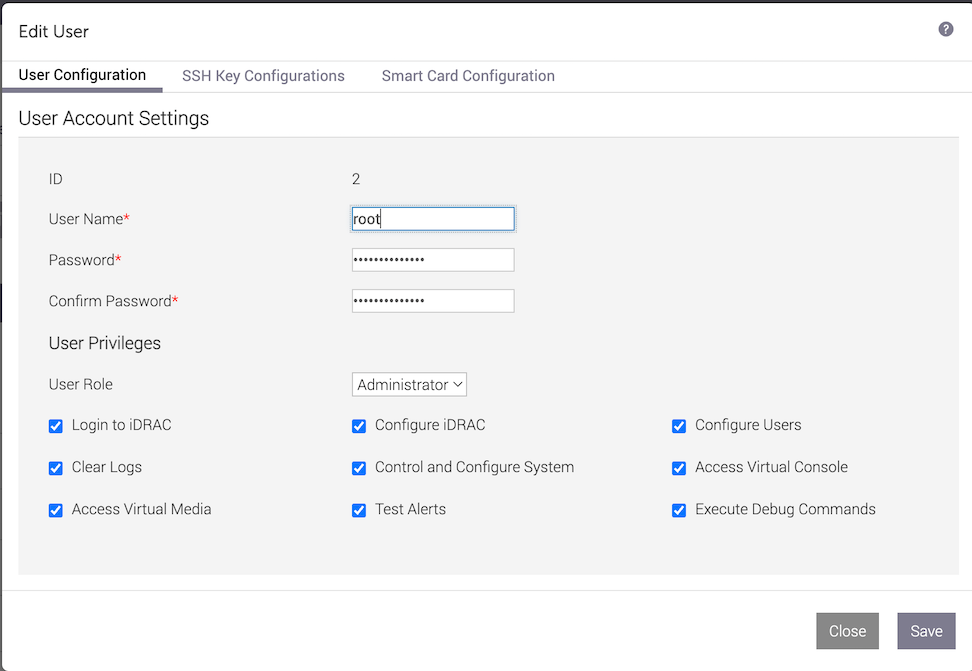
- Click on the Save button.
Figure 5. Save the Changes 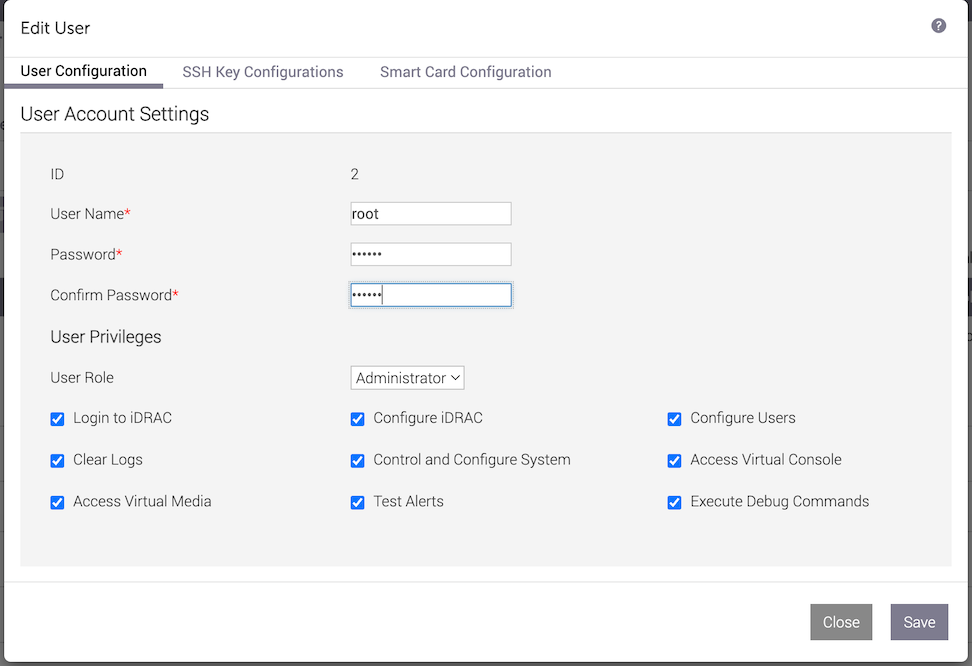
Figure 6. Changes Saved Successfully 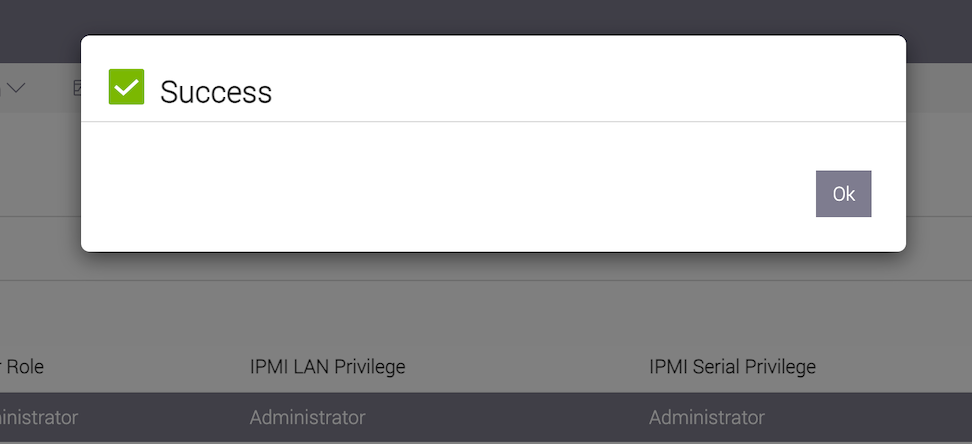
Changing iDRAC Password using Virtual Console
To change the password through the iDRAC web interface using virtual console, complete the following steps:
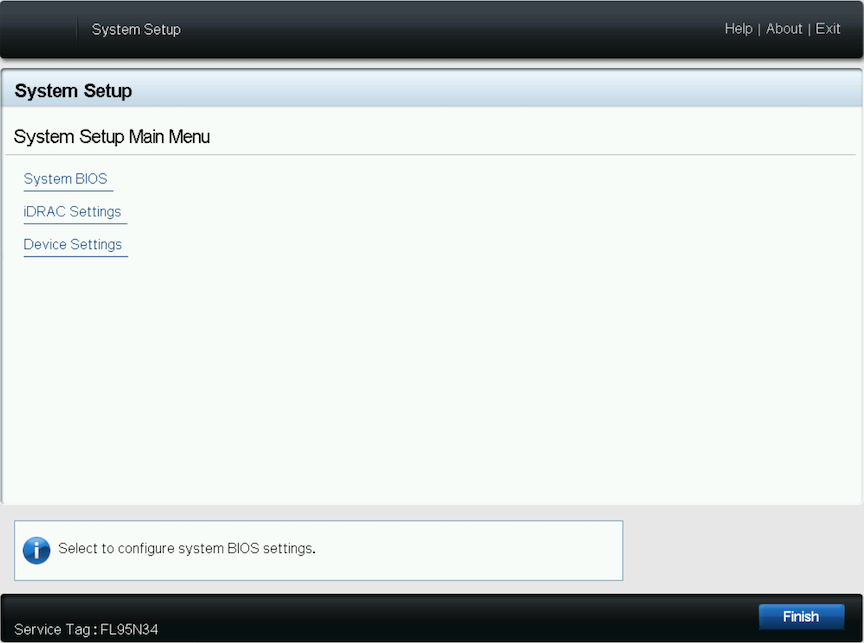
- Press F2 during system POST to access the System Settings page. Select the iDRAC Settings.
Figure 7. System Setup 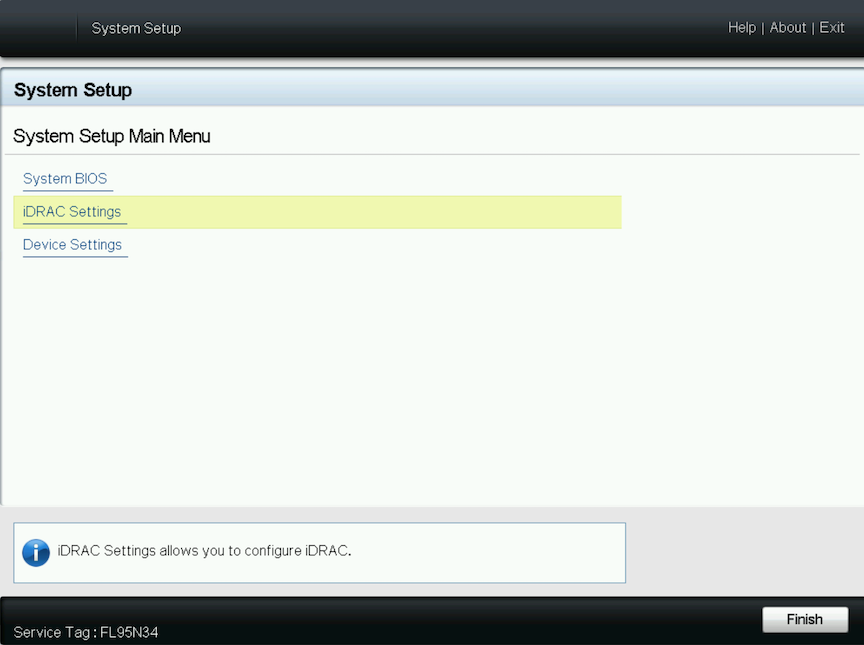
- In the iDRAC Settings page, go to User Configuration.
Figure 8. iDRAC Settings Page 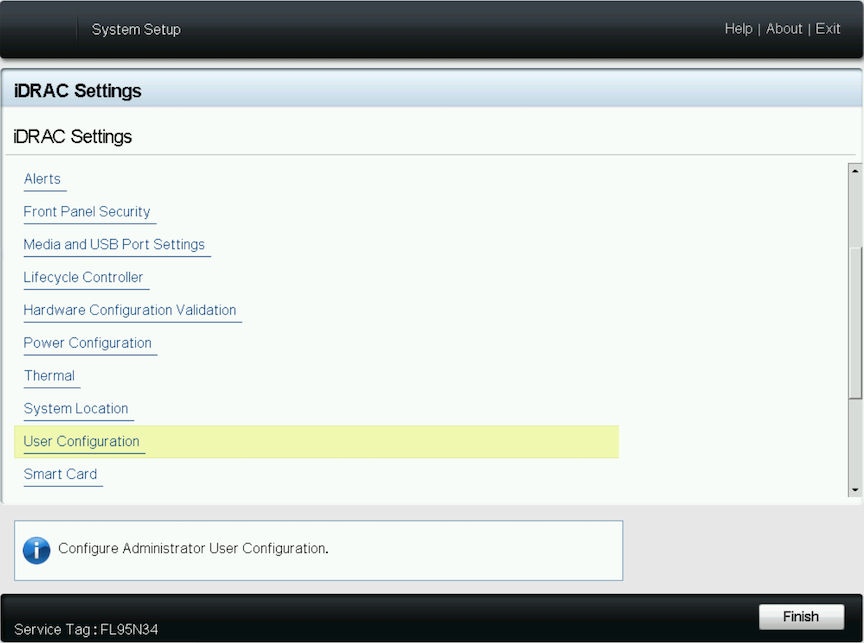
The iDRAC Settings User Configuration page is displayed.
- Enter the new password in the Change Password field.
Figure 9. iDRAC Setting - User Configuration Page 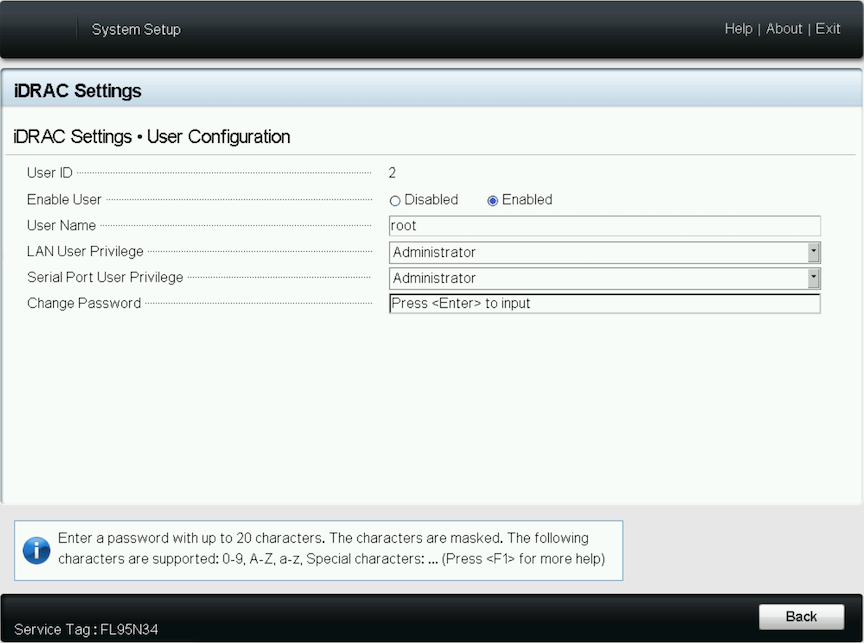
- Type the new password and then click the OK button or press Enter.
Figure 10. Confirm New Password 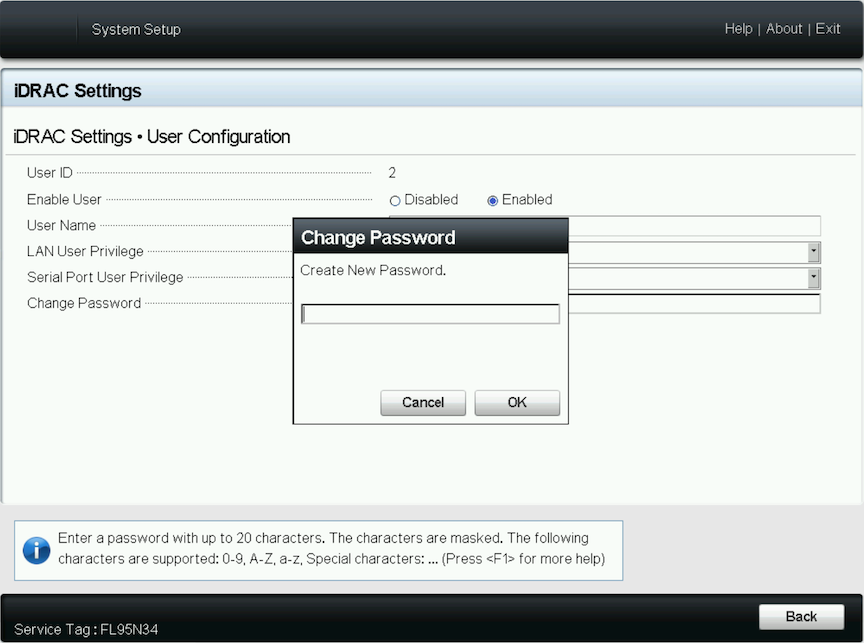
- Click the Back button or press Enter after changing the password.
Figure 11. Password Change 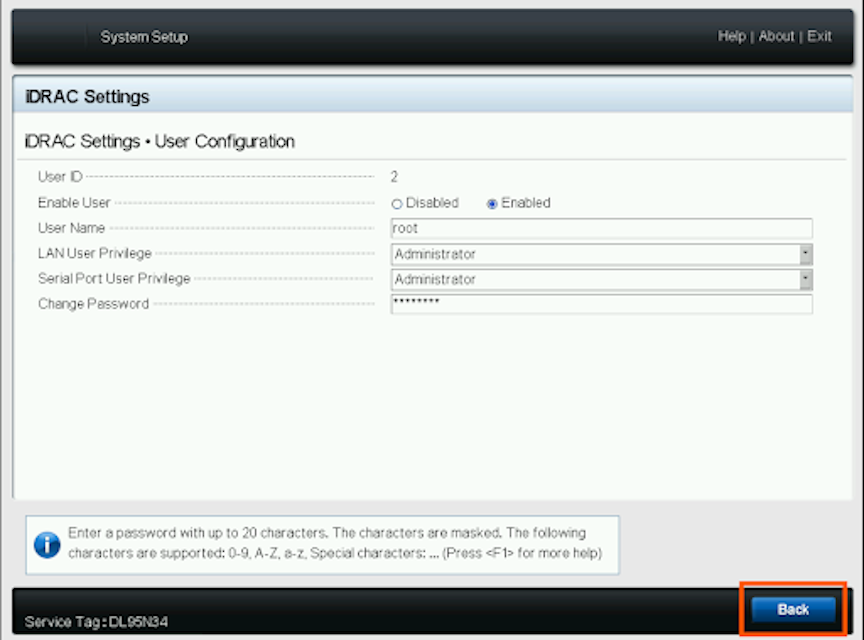
- Click Finish or press Enter.
Figure 12. iDRAC Settings 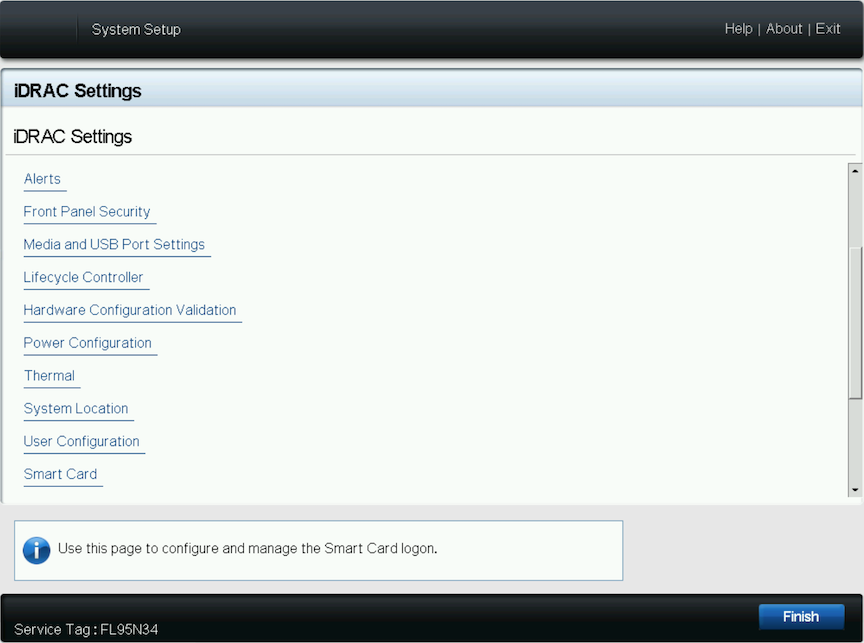
- Click Yes or press Enter to confirm the changes.
Figure 13. Save Changes 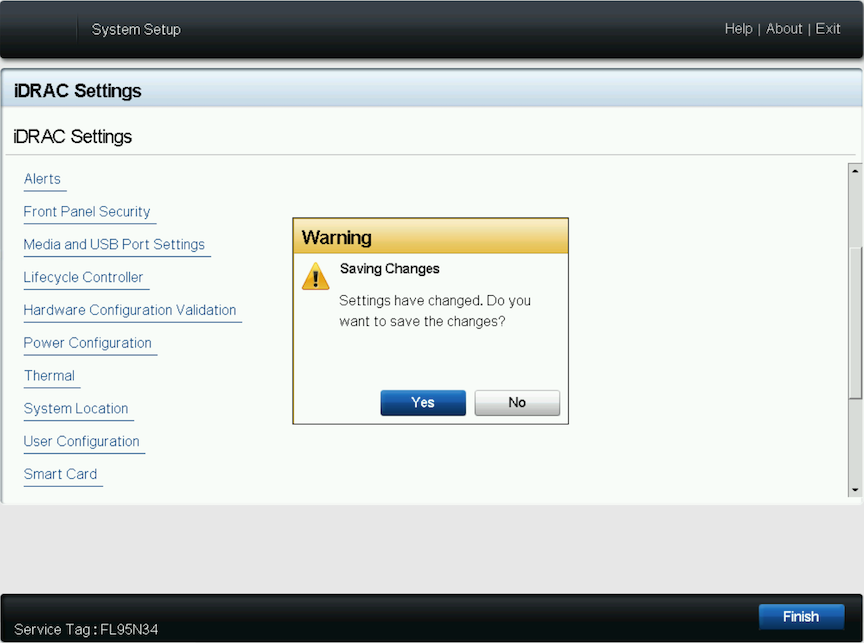
- Click OK or press Enter at the confirmation prompt.
Figure 14. Confirm Changes 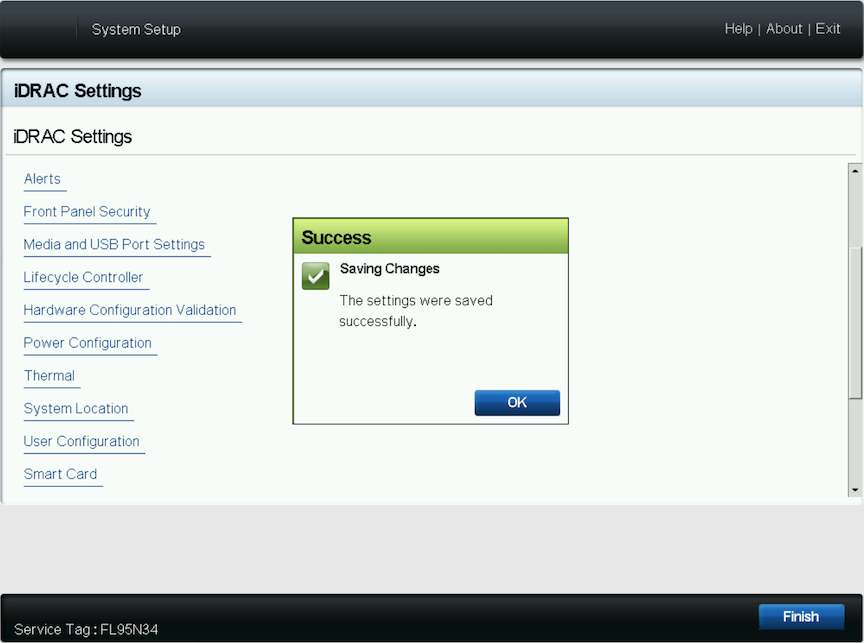
- Click Finish or press Enter.
Figure 15. Click Finish Button