
Installing the Access Point
This section explains installing the access point (AP).
Zero-Configuration of the Access Point
The AP supports zero-configuration under the following conditions:
- The device must be in AP mode with background scanning on and without an SSID configured.
- Set up a DNS entry for wifi-security-server on all the DNS servers. This entry should point to the IP address of the server. By default, the AP looks for the DNS entry wifi-security-server.
- Place the AP on a DHCP-enabled subnet.
Assign a static IP to the AP or change the settings to DHCP. Make a note of the MAC address and the IP address of the AP in a safe place before installing it in a hard-to-reach location. Locate the MAC address of the AP on a label at the bottom of the product.
Use the following steps to install the device:
Mounting the Access Point
Table Mounting the Access Point
- Plug the network cable (Ethernet cable) into the WAN port (PoE++) located at the back of the AP, as shown below. If the network does not havePoE enabled, plug the Power Adaptor at the DC Input port, as shown.
Figure 1. Attaching the cables to AP 
- Flip the stand on the AP as shown, aligning the hooks on the stand to the grooves on the AP. Slide the hooks into the grooves to attach the AP to the stand.
Figure 2. Attaching the stand to AP 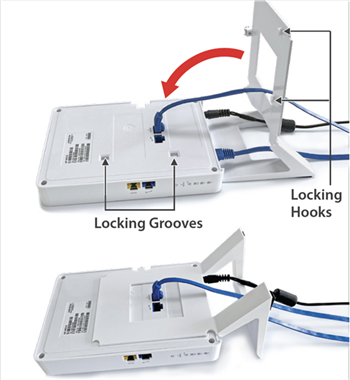
- The spring-loaded pin automatically locks into the locking hole of the AP. If the pin does not align, pull the pin and align it to the locking hole.
Note: To remove the AP from the stand, pull the pin and then remove the AP.
Figure 3. The location of the spring-loaded pin 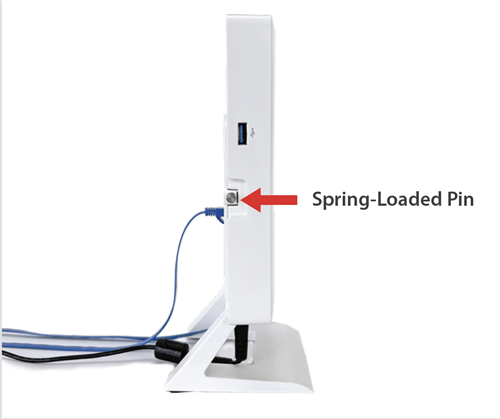
Use LAN 1, LAN 2, and LAN 3 ports at the bottom of the AP to connect to local devices.
Wall Mounting the Access Point
For instructions on wall mounting the access point, refer to the Wall Mount the Access Point article.
Connecting the Access Point to the Network
- Install the AP on a network with a DHCP-enabled server.
- Add the DNS entry for the wifi-security-server on all DNS servers. This entry points to the server IP address. By default, the AP looks for the DNS entry, wifi-security-server.
- Verify the AP LED status as ON with green LEDs, indicating an operational AP connected to the server.
- Log on to the server using SSH and run the get sensor list command.
The command returns a list of all Arista devices recognized by the server. Single Sign-On users can go to the tab in CloudVision Cognitive Unified Edge and check if the AP appears on the Access Points tab.
Connecting the Access Point Using PoE

Power On the Access Point
As an alternative to PoE, you can insert a compatible power adapter plug into an AC power outlet and the other end into the power input port on the AP.
Using the Access Point with a Power Adapter
- Plug the power cable into the DC power receptacle on the back of the AP.
- Plug the other end of the power cable into a110V~240V 50/60 Hz AC power source.
- Wait until the LED lights on the AP become active. Refer to the LED details table.