
Test and Verify Security Policies
Configure security policies in the Netskope security cloud to validate connectivity between the Netskope and VeloCloud SD-WAN traffic.
Ensure that the IPSEC tunnels to both the Primary and Secondary Netskope POPs connected successfully.
The following steps provide an example of blocking gambling-related websites by configuring the security policies.
Note: You can skip this procedure if you already have active production traffic through the portals.
- Login to the Netskope Next-generation Secure Web Gateway and navigate to . Configure a policy to block all gambling-related web sites.
Figure 1. Configuring a Policy 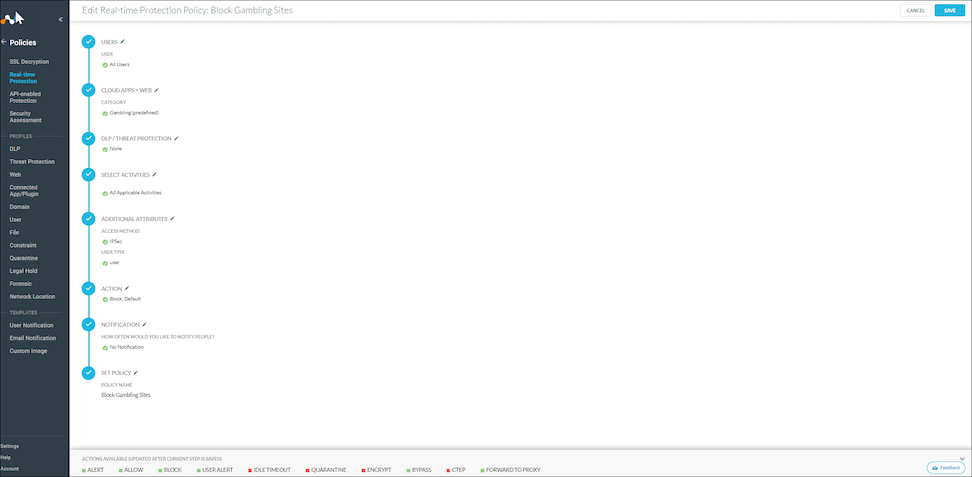
- Confirm that the policy applied and note the number of current hits or matches against the policy. In the following example, there are 0 Hits.
Figure 2. Real-time Protection 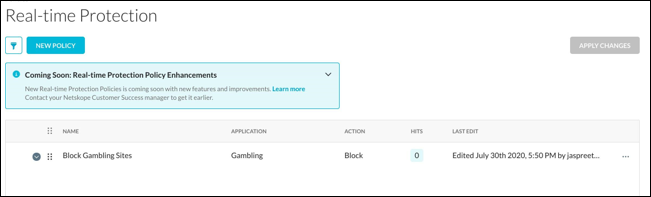
- In the Edge, login to any Windows-based client on the LAN and try to browse any gambling-related website.
Figure 3. Displaying a Non-Compliant Action 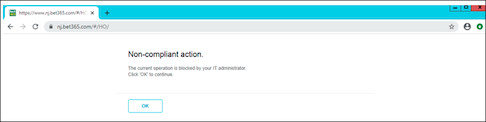
Notice that the Netskope portal blocks the action as per the policy configured in the Netskope portal.
- In the Netskope Next-Generation Secure Web Gateway, navigate to and check the hit count for the Block Gambling Sites policy.
Figure 4. Monitoring the Activity 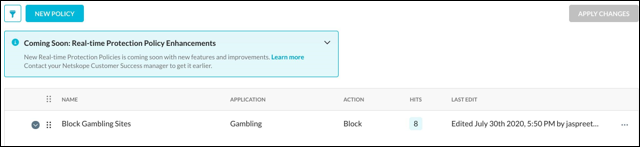
Notice that the hit count has incremented, which indicates active traffic passing through the Netskope Cloud Security platform.
- Navigate to the Skope IT portal and confirm the matches in the Page Events screen.
Figure 5. Displaying Page Events 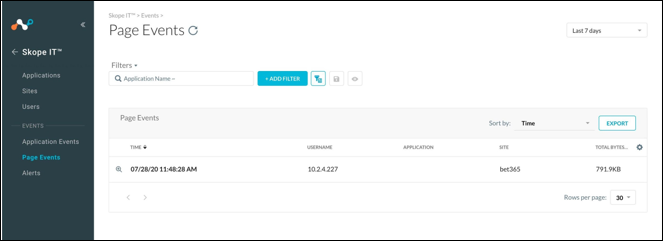
- Scroll down to the List Active Flows section and select Run to view the traffic flow.
Figure 6. List Active Flows 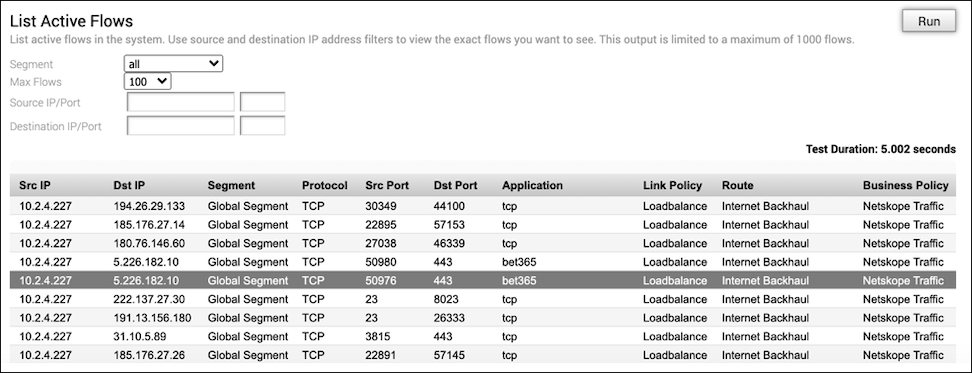
Notice that the traffic destined to the URL http://www.bet365.com has transited through the Internet Backhaul route and then to the Netskope security cloud.