
Configure IPsec from VeloCloud Gateway to Netskope POP
To integrate VeloCloud SD-WAN and Netskope, configure the IPsec from the Gateway to Netskope POP.
Configure VPN Credentials on the Netskope Portal
Ensure that you have valid login credentials to access Netskope.
To configure the VPN credentials:
Navigate to the Netskope NG SWG Portal- https://<customer-tenant>.goskope.com/
- Select Add New Tunnel.
Figure 1. Adding a New Tunnel 
- In the Add New IPsec Tunnel window, configure the following:
Figure 2. Adding New IPsec Tunnel 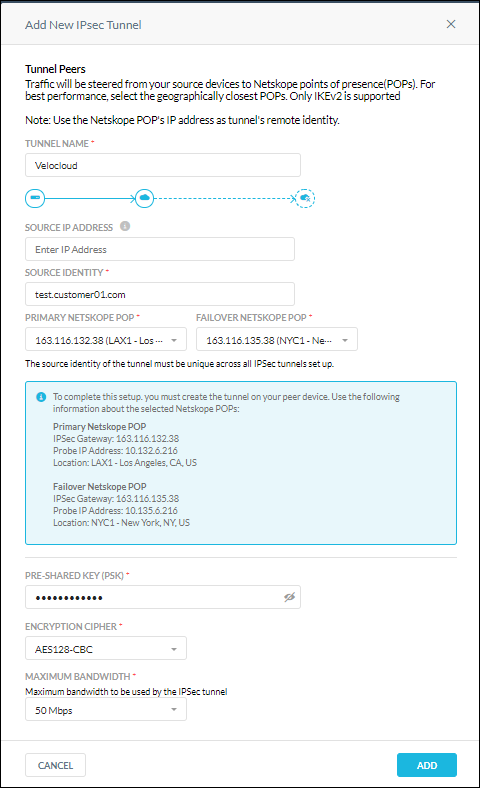
Table 1. New IPsec Tunnel Option Descriptions Option Description Tunnel Name Enter a name for the new IPsec tunnel Source IP Address Enter the source IP address Source Identity Enter the FQDN. Primary Netskope POP Select the primary Netskope POP Failover Netskope POP Select the secondary Netskope POP Pre-Shared Key (PSK) Enter the pre-shared key Encryption Cipher Select the encryption as AES128-CBC from the drop-down list. Maximum Bandwidth Select the maximum bandwidth to be used by the IPsec tunnel, from the list. - The configured tunnel displays in the IPsec window.
Figure 3. Displaying the Configured Tunnel 
Configure the Tunnel in VeloCloud Edge Cloud Orchestrator. See Configure Non SD-WAN Destination via Gateway.