
Configure User Account Details

The My Account page allows users to configure basic user information, SSH keys, and API tokens. Users can also view the current user role and the associated privileges.

Ensure securely configuring privileges for a user to access Edges. Choose Basic access level for the user. Configure the access level when creating a new user in User Management, and opt to modify it at a later point in time. Only a Superuser can modify the access level for a user.

To access the My Account page, perform the following steps:

  1. Select the User icon in the Global Navigation.
    The User Information panel appears:
    Figure 1. User Information
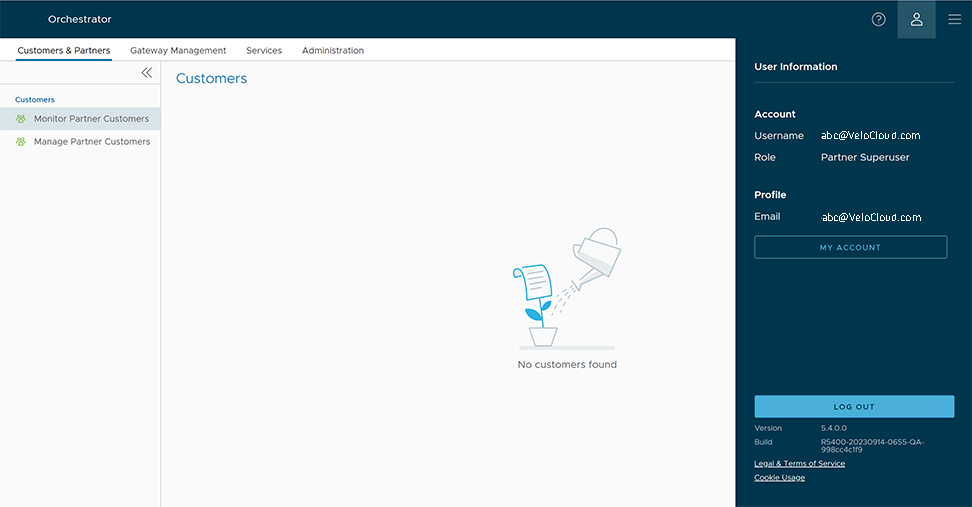
  2. Select My Account. The following screen appears:
    Figure 2. Profile tab
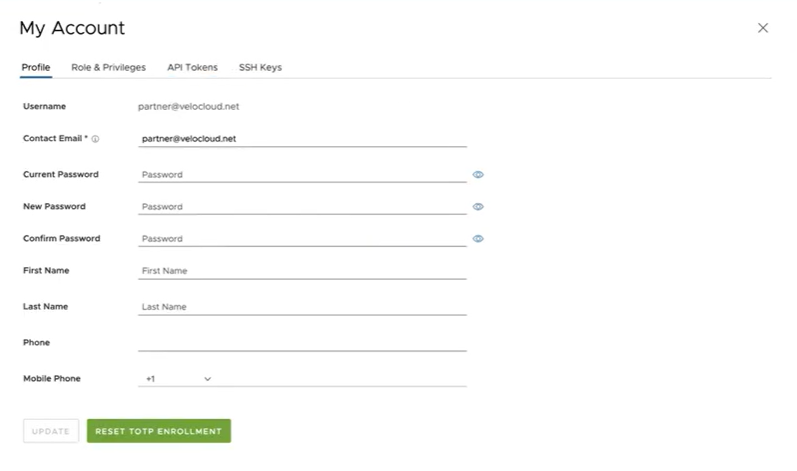
  3. The Profile tab appears by default. Update the following basic user details:
    Table 1. Profile tab - Options and Descriptions
    Option Description
    Username Displays the username and it is a read-only field.
    Contact Email Enter the primary contact email address of the user.
    Current Password Enter the current password.
    New Password Enter the new password.
    Note: Starting from the 4.5 release, the use of the special character "<" in the password is no longer supported. In cases where users have already used "<" in their passwords in previous releases, they must remove it to save any changes on the page.
    Confirm Password Re-enter the new password.
    First Name Enter the first name of the user.
    Last Name Enter the last name of the user.
    Phone Enter the primary phone number of the user.
    Mobile Phone Enter the mobile number of the user along with the country code.
  4. Select Update to save the user details.
  5. Select Reset TOTP Enrollment to reset the existing enrollment.
    Note: Changing the account password automatically resets the TOTP enrollment.
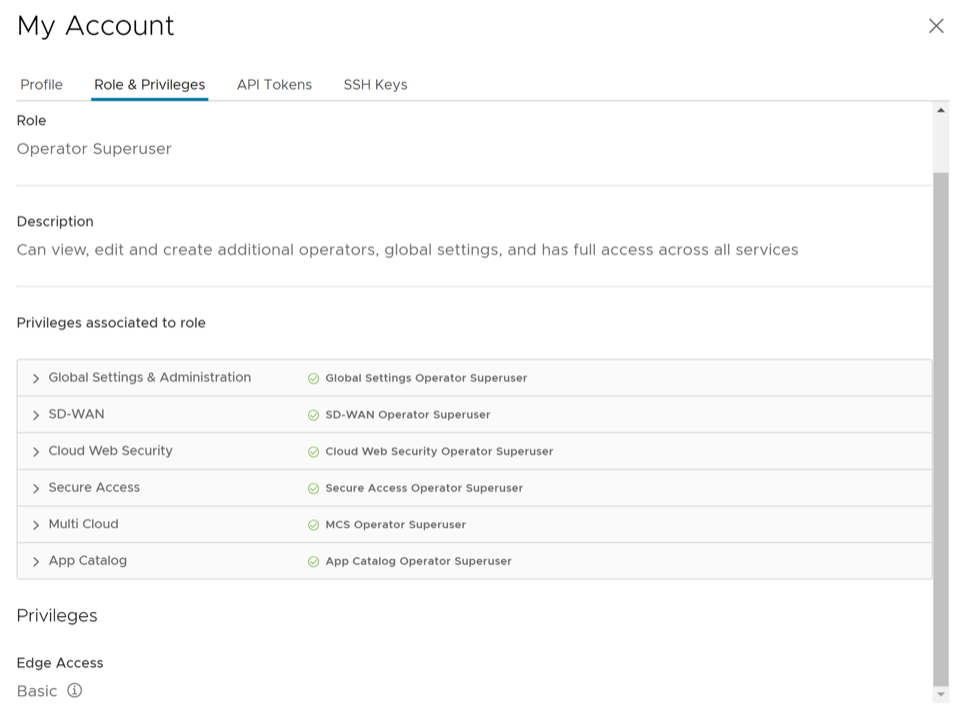
  6. Select the Role & Privileges tab to view the existing user role and description. This tab also displays the privileges associated with the user role.
    Figure 3. Role and Privileges tab
  7. Select the API Tokens tab. The following screen appears:
    Figure 4. API Tokens tab
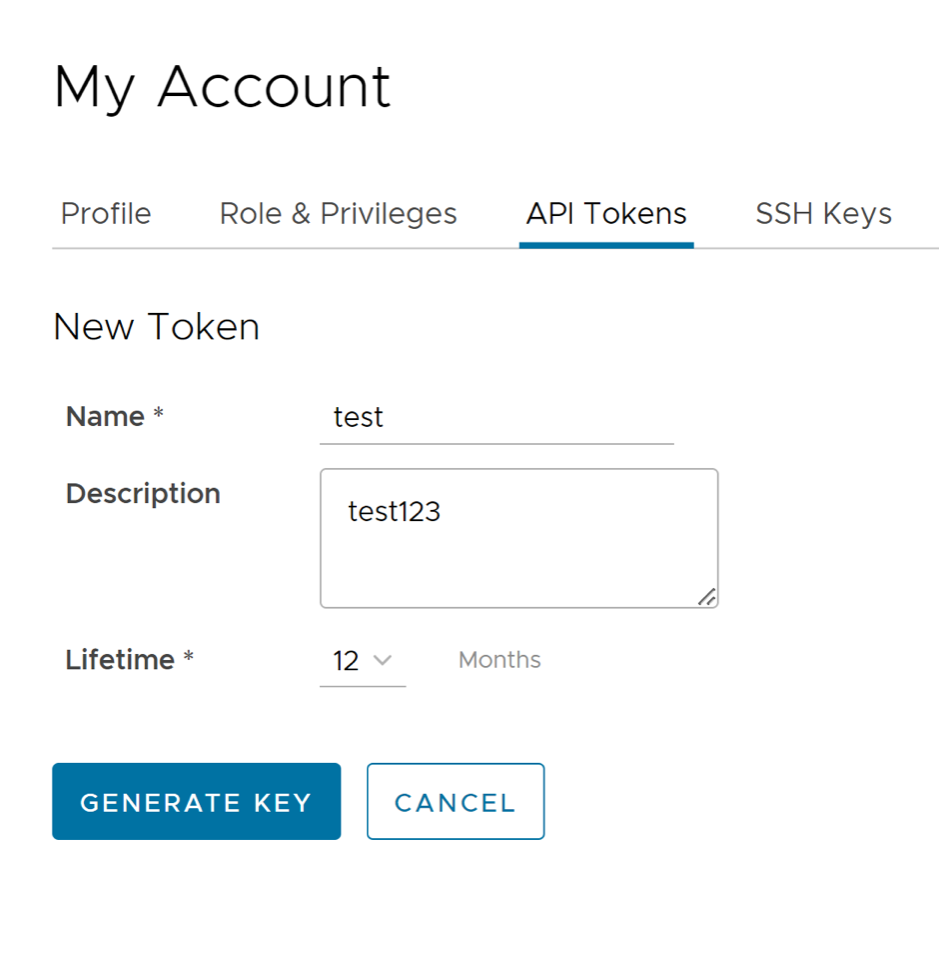
  8. Enter a Name and Description for the token, then choose the Lifetime from the menu.
  9. Select the SSH Keys tab to configure a Secure Shell (SSH) key-based authentication.
    The SSH key-based authentication provides a secure and robust authentication method to access VeloCloud Edges. It provides a strong, encrypted verification and communication process between users and Edges. Using SSH keys bypasses the need to manually enter login credentials and automates the secure access to Edges.
    Note:
    • Both the Edge and the Orchestrator must be using Release 5.0.0 or later for this feature.
    • Users with Operator Business or Business Specialist account roles cannot access Edges using key-based authentication.

    For additional information, see Add an SSH Key.