
Manage Gateway Pools and Gateways
An Arista network consists of multiple service Gateways deployed at top tier network and cloud data centers. The Gateway provides the advantage of cloud-delivered services and optimized paths to all applications, branches, and data centers. Service providers can also deploy their own Partner Gateways in their private cloud infrastructure.
This topic contains the following sections:
Manage Gateway Pools
Organize Gateways into pools and then assign the pools to a network. After installing Orchestrator, an unpopulated default Gateway pool becomes available. If required, create additional Gateway pools.
As a Partner Super user and Partner Admin user,create, manage, download, and delete Gateway pools created by a Partner user or a Partner Managed Gateway pools created by the Operator.
Only Partners with Gateway management access can configure the New Gateway Pool and Download options. If the Gateway management access deactivates for a Partner, then the Partner has only read-only permission for the configured Gateway pools. To request Gateway Management access, Partners must contact the Operator Super user.
To manage Gateway pools, perform the following steps:
- In the Orchestrator UI, select Gateway Management, and navigate to Gateway Pools.
Figure 1. Gateway Pools 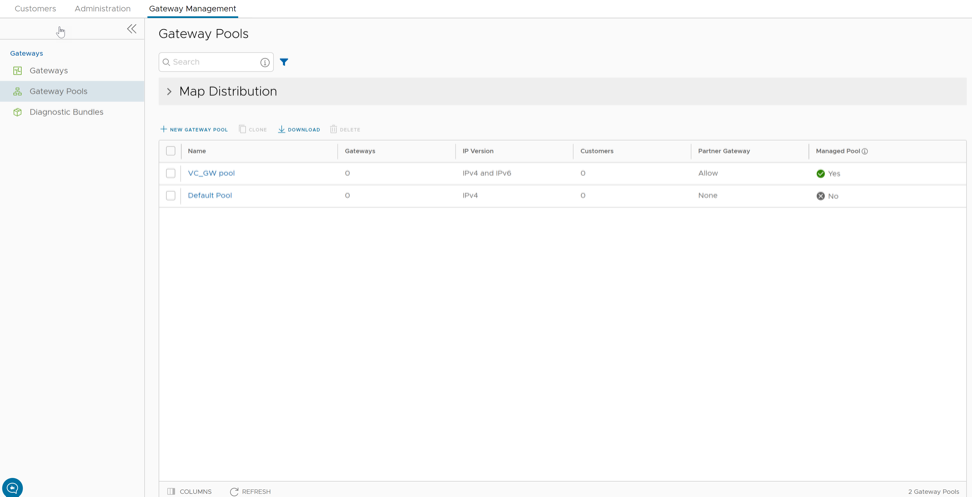
- New Gateway Pool – Creates a new Gateway pool. See Create a New Gateway Pool.
- Clone – Creates a new Gateway pool by cloning the existing configurations from the selected Gateway pool. See Clone a Gateway Pool.
- Download- Downloads the CSV file for all Gateway pools or the selected Gateway pool.
- Delete – Deletes the selected Gateway pool. You cannot delete a Gateway pool already in use by an Enterprise Customer.
- You can also configure the existing Gateway pools by selecting the name link of the Gateway pool. See Configure Gateway Pools.
Create a New Gateway Pool
- In the New Gateway Pool dialog, configure the following details and select Create.
Figure 2. New Gateway Pool 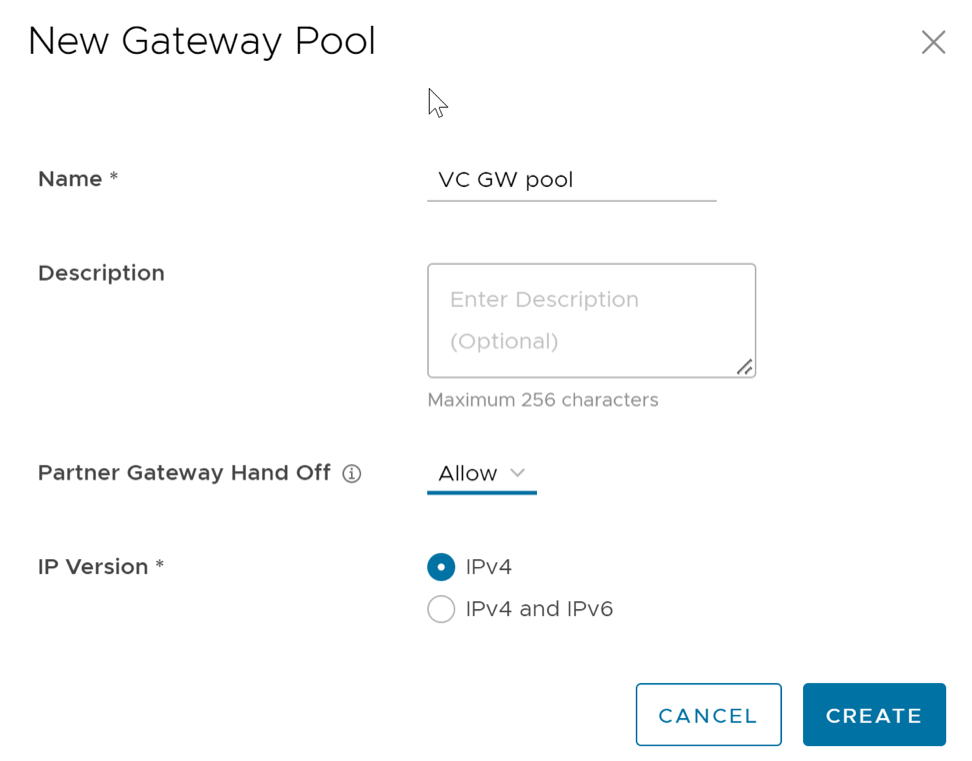
Table 2. New Gateway Pool - Options and Descriptions Option Description Name Enter the new Gateway pool name. Description Enter the Gateway pool description. Partner Gateway Hand Off This option determines the method to hand off the Gateways to Partners. Select one of the following options from the list: - None – Select this option when no Partner Gateway hand off required.
- Allow – Select this option to support a mix of both the Partner Gateways and Cloud Gateways.
- Only Partner Gateways – Select this option when Edges in the Enterprise should not have Cloud Gateways from the pool, and only assign them the Gateways set for an individual Edge.
IP Version Choose one of the following address types to enable on the Gateway pool: - IPv4 – Allows IPv4 only Gateways.
- IPv4 and IPv6 – Allows Gateways with IPv4 and IPv6 addresses.
Note: If you want to use Edges with IPv6 support, then select IPv4 and IPv6.
Clone a Gateway Pool
- In the Gateway Pools table, select the Gateway pool that you want to clone then select Clone.
Figure 3. New Gateway Pool 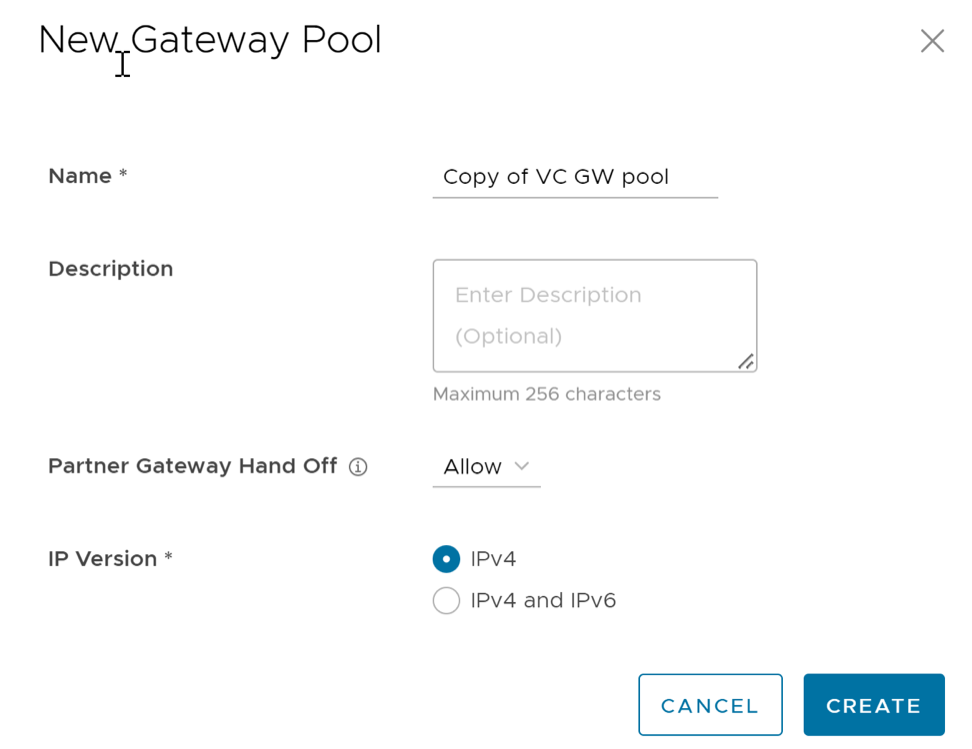
The Gateway pool clones the existing configuration from the selected Gateway pool. If required, you can modify the details. For additional information on the options, see Create a New Gateway Pool.
Configure Gateway Pools
- Configure the following details for the Gateway pool:
Figure 4. Partner Pool 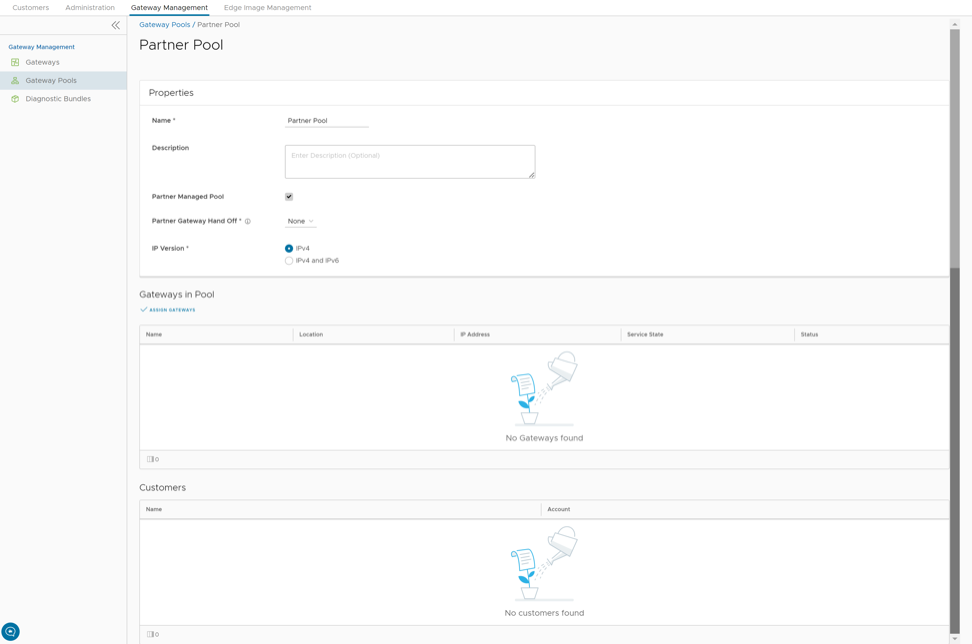
- The Properties section displays the existing Name, Description, Partner Gateway Hand Off details, and the Association Type. If required, you can modify these details.
- In the Gateways in Pool section, select Manage to add Gateways to the pool. The Assign Gateways to Gateway pool dialog appears.
- In the Assign Gateways to Gateway pool dialog, move the required Gateways from the Available pane to Assigned pane using the Arrows then select Update.
Figure 5. Assign Gateways 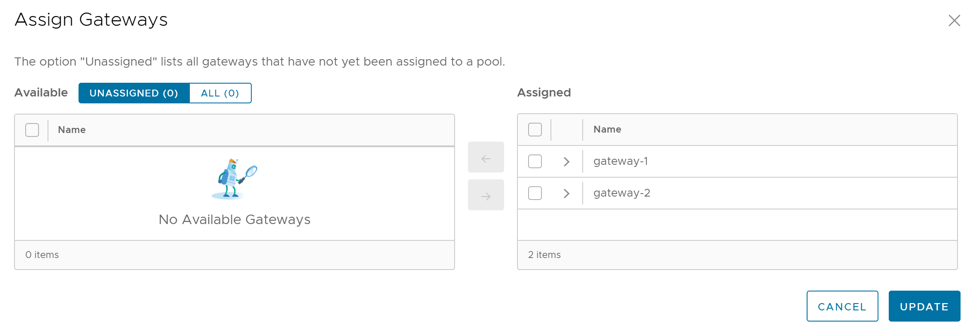
- The Gateways assigned to the selected Gateway pool display as follows:
Figure 6. Gateways in Pool 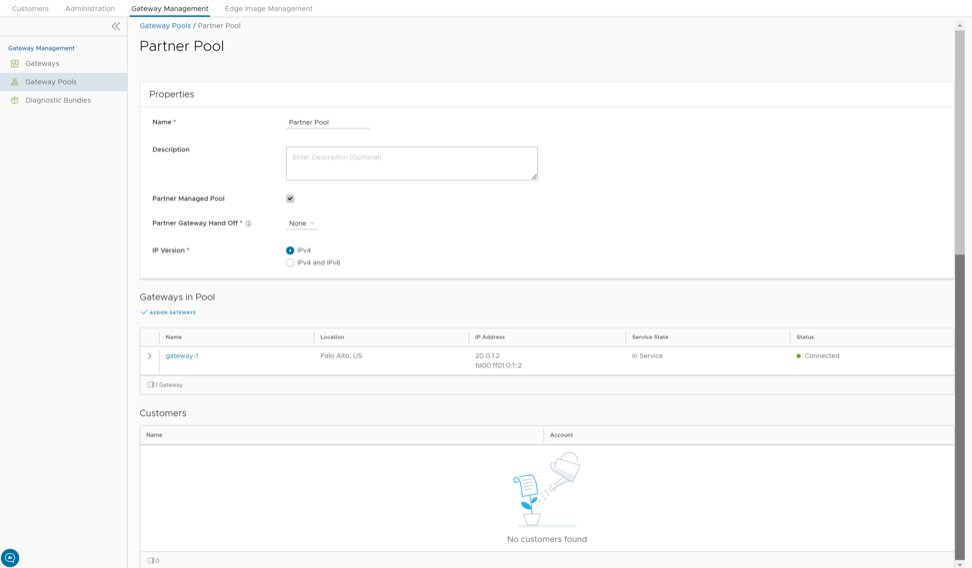
- For a new customer, see Create a New Partner Customer.
- For an existing customer, see Configure Partner Customers.
Manage Gateways
By default, Orchestrator installs gateway-1 and gateway-2, and you can create additional Gateways.
Partner Super user and Admin with Gateway management access activated can create, manage, and delete Gateways created by a Partner or Partner managed Gateways created by an Operator. The Partner IT support users can only view the configured Gateways.
To manage Gateways, perform the following steps:
- In the Orchestrator UI, select the Gateway Management tab and go to Gateways.
The Gateways page appears.
Figure 7. Gateways 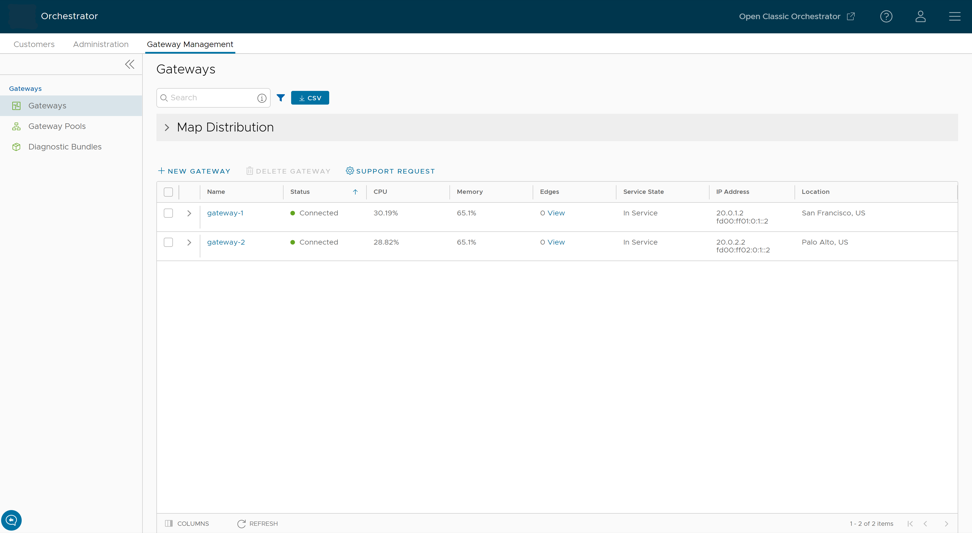
- New Gateway – Creates a new Gateway. See Create a New Gateway.
- Delete Gateway – Deletes the selected Gateway. You cannot delete a Gateway that is already being used by an Enterprise Customer.
- Support Request – Redirects to a Knowledge Base article that has instructions on how to file a support request.
Create a New Gateway
To create a Gateway, perform the following steps:
- In the New Gateway dialog, configure the following details:
Figure 8. New Gateway 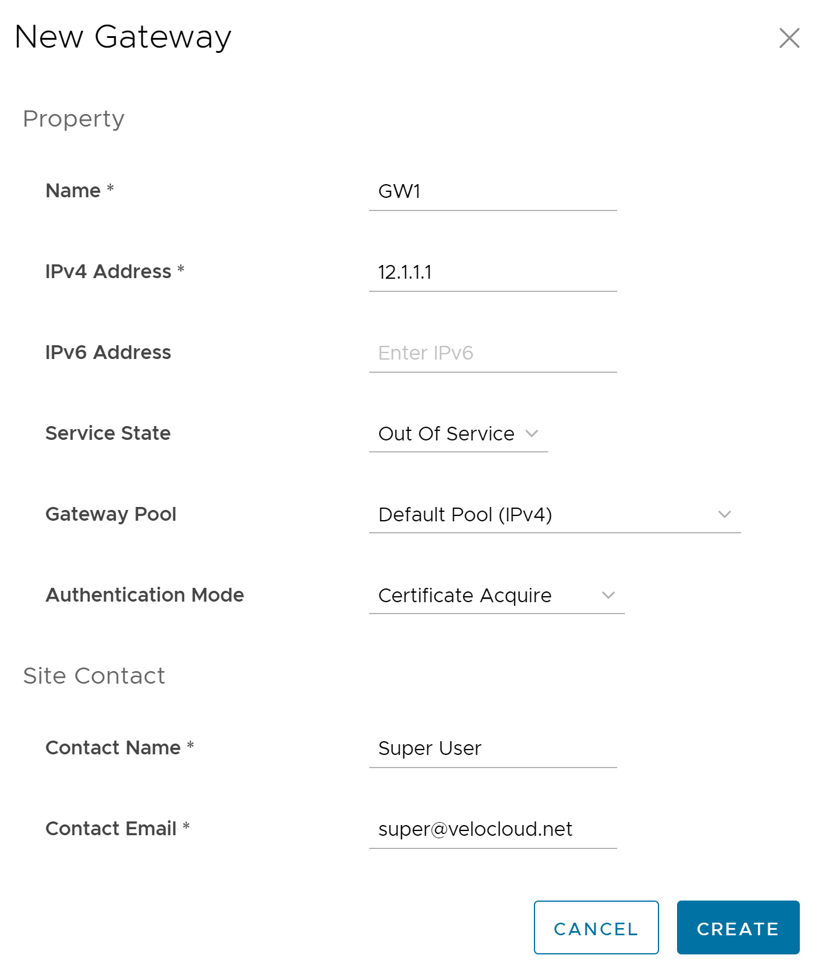
Table 4. New Gateway - Options and Descriptions Option Description Name Enter a new Gateway name. IPv4 Address Enter the Gateway IPv4 address. IPv6 Address Enter the Gateway IPv6 address. Service State Select the service state of the Gateway from the following options: - In Service- The Gateway connected and available.
- Out of Service- The Gateway has not connected.
- Quiesced- The Gateway service has quiesced or paused. Select this state for backup or maintenance purposes.
Note: The Quiesced and Out of Service states only apply to Cloud Gateway deployment.Gateway Pool Assign the Gateway to a Gateway Pool. Authentication Mode Select the authentication mode of the Gateway from the following available options: - Certificate Not Required- Gateway uses a pre-shared key mode of authentication.
- Certificate Acquire- Selected by default and instructs the Gateway to acquire a certificate from the certificate authority of the Orchestrator by generating a key pair, and sending a certificate signing request to the Orchestrator. Once acquired, the Gateway uses the certificate for authentication to the Orchestrator and for establishment of VCMP tunnels.
Note: After acquiring the certificate, the option can be updated to Certificate Required.
- Certificate Required- Gateway uses the PKI certificate.
Contact Name Enter the name of the Site Contact. Contact Email Enter the Email ID of the Site Contact. Note:- Once you create a Gateway, you cannot modify the IP addresses.
- Bastion Orchestrator configuration does not support IPv4/IPv6 dual-stack mode.
To configure additional settings for the Gateway, see Configure Gateways.
Configure Gateways
To configure an existing Gateway:
- On the Overview tab, you can configure the following details:
Figure 9. Configure Gateways 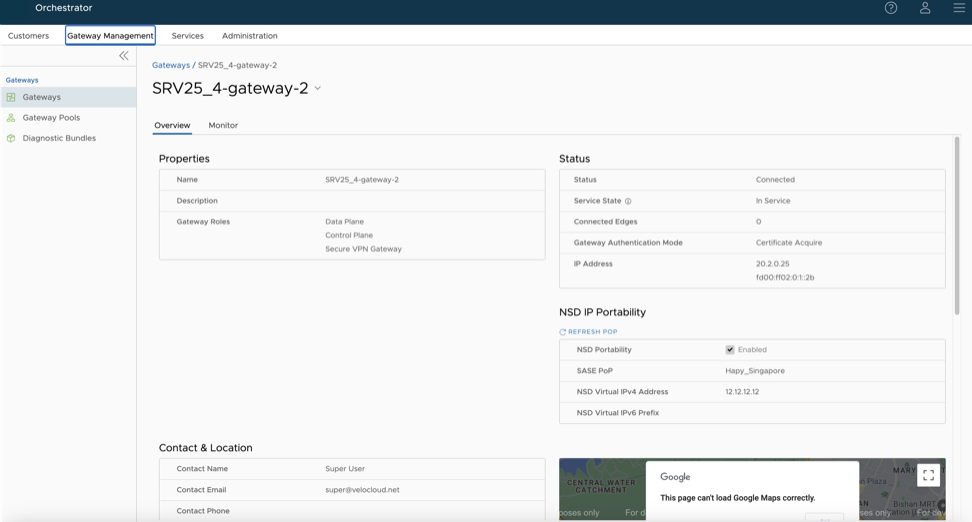
Table 5. Configure Gateways - Options and Descriptions Option Description Properties Displays the existing Name and Description of the selected Gateway. If required, you can modify the information. You can also configure the Gateway Roles as required:- Data Plane- Enables the Gateway to operate in the Data plane and selected by default.
- Control Plane- Enables the Gateway to operate in the Control plane and selected by default.
- Secure VPN Gateway- Select the option to use the Gateway to establish an IPsec tunnel to a Non SD-WAN Destination.
- Partner Gateway- Assign the Gateway as a Partner Gateway for Edges. If you select this option, configure the additional settings as described in Partner Gateway (Advanced Handoff) Details.
- CDE- Enables the Gateway to operate in Cardholder Data Environment (CDE) mode. Select this option and assign to the Gateway for customers who require transmitting PCI traffic.
- Cloud-to-Cloud Interconnect- Select the option to enable cloud-to-cloud-interconnect (CCI) tunnels on the VeloCloud Gateways.
Note: This Gateway Role option only displays if you set the
session.options.enableZscalerCcisystem property to True. - Symantec Web Security Service - Enables the Gateway Symantec Web Security Service capability. The Orchestrator assigns this Gateway to the Edge as WSS Primary Gateway or WSS Secondary Gateway.
Note: This assignment only works if you do not set the Gateway Pool's Partner Gateway Handoff to Only.
Status Configure the following details: - Status- Displays the status of the Gateway as determined by the success or failure of periodic heartbeats sent to the Orchestrator. Displays one of the following the available statuses:
- Connected- Gateway successfully sends heart beats to the Orchestrator.
- Degraded- Orchestrator has not received a heart beat from the Gateway for at least one minute.
- Offline- Orchestrator has not received a heart beat from the Gateway for at least two minutes.
- Service State- Select the Service State of the Gateway from the following available options:
- In Service- The Gateway connected, and available for Primary or secondary tunnel assignments. When the Service state of the Gateway switches from the Out Of Service to In Service state, the Primary or Secondary assignments, Super Gateways, Edge-to-Edge routes recalculate for each Enterprise using the Gateway.
- Pending Service- The Gateway connected, and pending for tunnel assignments.
- Out of Service- The Gateway did not connect or not available for any assignments. All the existing assignments removed.
- Quiesced- The Gateway service quiesced or paused. No new tunnels or NSD sites can be added to the Gateway. However, the existing assignments remain in the Gateway. Select this state for backup or maintenance purposes.
Note: The Quiesced and Out of Service states only apply to Cloud Gateway deployment.When the Service state is Quiesced, Orchestrator provides a self-service migration functionality that allows you to migrate from your existing Gateway to a new Gateway without Operator support.
For additional information, see Migrate Quiesced Gateways.
Note: Partner Gateways do not support self-service migration.
Connected Edges Displays the number of Edges connected to the Gateway. Displays only for an activated Gateway. Gateway Authentication Mode Select the authentication mode of the Gateway from the list: - Certificate Deactivated: Gateway uses a pre-shared key mode of authentication. If you change the mode from Certificate Deactivated to one of the following:
- Certificate Acquire: Tunnels based on PSK mode not impacted. Only tunnels with Gateways impacted. These tunnels reconnect based on certificate. All tunnels configured with PSK mode continue to stay active and no disruption occurs in the traffic.
- Certificate Required: The Orchestrator does not directly allow this change. You must first change the mode to Certificate Acquire, and then change it to Certificate Required. This avoids heartbeat loss to the Orchestrator when assigning a certificate to an Edge.
- Certificate Acquire: Selected by default and instructs the Gateway to acquire a certificate from the certificate authority of the Orchestrator by generating a key pair and sending a certificate signing request to the Orchestrator. Once acquired, the Gateway uses the certificate for authentication to the Orchestrator and for establishment of VCMP tunnels. If you change the mode from Certificate Acquire to one of the following:
- Certificate Deactivated: PSK based tunnels not impacted. Tunnels with Gateways and all certificate-based tunnels disconnect and reconnect based on PSK.
- Certificate Required: All peers configured with PSK mode disconnect and cannot connect to the Hub. All current RSA tunnels stay active.
When in the Certificate Acquire mode, the tunnels based on the certificate reestablish with the new certificate. No impact occurs on PSK-based tunnels.
Note: After acquiring the certificate, the option can be updated to Certificate Required. - Certificate Required: Gateway uses the PKI certificate. Operators can change the certificate renewal time window for Gateways using the system property
gateway.certificate.renewal.window. If you change the mode from Certificate Required to one of the following:- Certificate Deactivated: All peers with RSA tunnel disconnect and cannot reconnect. All peers configured with PSK mode continue to stay active and no disruption occurs for the traffic.
- Certificate Acquire: All peers configured in PSK mode reconnect with Hub/Gateway. All current RSA tunnels stay active.
Note:- If a Gateways has a revoked certificate, the Gateway does not receive certificate revocation list (CRL) as it loses TLS connection immediately. The Gateway remains operable.
- The current QuickSec design checks CRL time validity. The CRL time validity must match with current time of Edges for the CRL to impact the new established connection. To implement this, ensure to update Orchestrator time properly to match with date and time of Edges.
IP Address Displays the IP address that public WAN links of an Edge use to connect to the Gateway. This IP address uniquely identifies the Gateway. If you configured the Gateway with both IPv4 and IPv6 addresses, this field displays both IP addresses. If you created an IPv4 Gateway or if an existing IPv4 Gateway upgraded from previous versions, you can enter the IPv6 address to support the dual stack. After you save the changes, the IPv6 address does not send to the Edges immediately. You can trigger the rebalance operation to push the IPv6 address to the customer and the associated Edges manually or the IPv6 address sends to the Edges during the next Control Plane update. Note: Adding IPv6 address is a one-time activity and once you save the changes, you cannot modify the IP addresses.CAUTION: An incorrectly configured IPv6 address, when pushed to Edges, might lead to failure of the IPv6 tunnelling to the IPv6 Gateway. In this case, deactivate the Gateway and create a new one to activate both IPv4 and IPv6 addresses.Contact & Location Displays the existing contact details. If required, you can modify the information. NSD IP Portability The NSD IP Portability for the Gateway supported in the 6.0 release of Orchestrator. Portable NSD IPs allow an Operators to move NSD configurations to different Gateways in the POP without reconfiguring the tunnels. Note: For a Partner user, the NSD Portability functionality displays as read-only and cannot be edited.Figure 10. NSD IP Portability 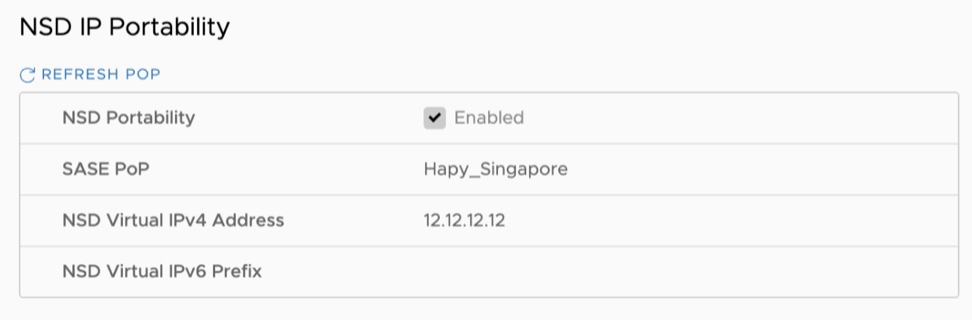
Syslog Settings Beginning with the 4.5 release, Gateways can export NAT information using a remote syslog server or using Telegraf to the desired destination. For additional information, see the Configure NAT Entry Syslog for Gateways section in the VeloCloud SD-WAN Operator Guide. Customer Usage Displays the usage details of different Gateway types assigned to the customers. Pool Membership Displays the details of the Gateway pools assigned to the current Gateway. Partner Gateway (Advanced Handoff) Details This section displays only if you select Partner Gateway, and configure advanced handoff settings for the Partner Gateway. For additional information, see the Partner Gateway (Advanced Handoff) Details section below. Partner Gateway (Advanced Handoff) DetailsConfigure the following advanced handoff settings for the Partner Gateway:
Table 6. Partner Gateway Details - Options and Descriptions Option Description Static Routes | Subnets – Specify the subnets or routes the Gateway advertises to the Edge. Applies globally per Gateway and also applies to ALL customers. BGP only uses subnets if customers need access to a shared subnet and requires NAT handoff . Remove any unused subnets from the Static Route list if you do not need to advertise any subnets to the Edge and have the handoff type NAT.
You can select the IPv4 or IPv6 tab to configure the corresponding address type for the Subnets.
Subnets Enter the IPv4 or IPv6 address of the Static Route Subnet the Gateway advertises to the Edge. Cost Enter the cost to apply weight on the routes. The range is from 0 to 255. Encrypt Select to encrypt the traffic between Edge and Gateway. Hand off Select the handoff type as VLAN or NAT. Description Optionally, enter a descriptive text for the static route. ICMP Probes and Ping Responders Settings ICMP Failover Probe – The Gateway uses ICMP probe to check for the reachability of a particular IP address and notifies the Edge to failover to the secondary Gateway if it cannot reach the Gateway IP address. This option supports only IPv4 addresses. VLAN Tagging Select the VLAN tag from the list to apply to the ICMP probe packets. Use one of the following available options: - None – Untagged
- 802.1q – Single VLAN tag
- 802.1ad / QinQ(0x8100) / QinQ(0x9100) – Dual VLAN tag
Destination IP address Enter the IP address to ping. Frequency Enter the time interval, in seconds, to send the ping request. The range is from 1 to 60 seconds. Threshold Enter the number of times the ping replies can be missed to mark the routes as unreachable. The range is from 1 to 10. ICMP Responder- Allows the Gateway to respond to the ICMP probe from the next hop router when the tunnels are up. This option supports only IPv4 addresses. IP address Enter the virtual IP address that will respond to the ping requests. Mode Select one of the following modes from the drop-down list: - Conditional – Gateway responds to the ICMP request only when the service is up and when at least one tunnel is up.
- Always – Gateway always responds to the ICMP request from the peer.
Note: The ICMP probe parameters are optional and recommended only if you want to use ICMP to check the health of the Gateway. With BGP support on the Partner Gateway, using ICMP probe for failover and route convergence is no longer required. For additional information on configuring BGP support and handoff settings for a Partner Gateway, see Configure a Partner Gateway Handoff to Production Orchestrator.
Monitor Gateways
To monitor the Gateways, use the following steps:
- Log into the Orchestrator as a Partner and in the Partner portal, select .
The Gateways page displays the list of available Gateways.
Figure 11. Monitor Gateways 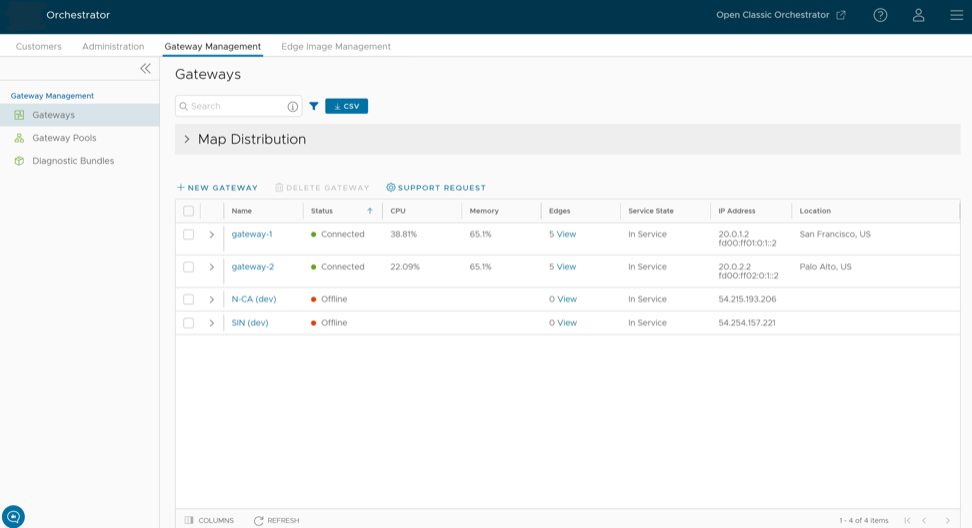
- Select the link to a Gateway to view the details of the selected Gateway.
Figure 12. Details of Selected Gateway 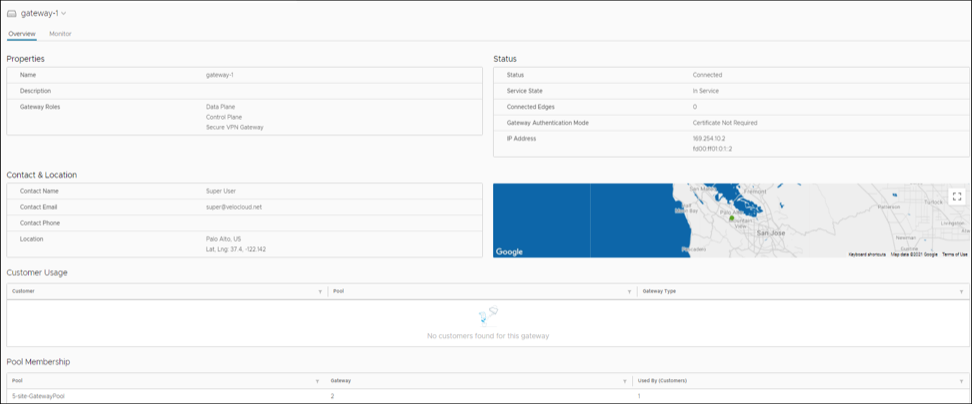
The Overview tab displays the properties, status, location, customer usage, and Gateway Pool of the selected Gateway.
Note: You can only view the details of the selected Gateway with this tab. To configure the options, navigate to the Gateways page in the Partner portal of the Orchestrator. - Select the Monitor tab to view the usage details of the selected Gateway.
Figure 13. Usage Details of the Selected Gateway 
At the top of the page, select a specific time period to view the details of the Gateway for the selected duration.
The page displays graphical representation of usage details of the following parameters for the period of selected time duration, along with the minimum, maximum, and average values.- CPU Percentage – Percentage of usage of CPU.
- Memory Usage – Percentage of usage of memory.
- Flow Counts – Count of traffic flow.
- Over Capacity Drops – Total number of packets dropped due to over capacity since the last sync interval. Expect occasional drops, usually caused by a large burst of traffic. However, a consistent increase in drops usually indicates a Gateway capacity issue.
- Tunnel Count – Count of tunnel sessions for both the IPv4 and IPv6 addresses.
Hover the mouse on the graphs to view additional details.
VeloCloud Gateway Migration
VeloCloud Orchestrator provides a self-service migration functionality to migrate from your existing Gateway to a new Gateway without an Operator’s support.
- Achieve operational efficiency.
- Decommission old Gateways.
Gateways have specific role configurations. For example, a Gateway with data plane role forwards data plane traffic from source to destination. Similarly, a Gateway with Control Plane role, a Super Gateway, assigned to an Enterprise. Edges within the Enterprise connect to the Super Gateway. A Gateway with Secure VPN role establishes an IPsec tunnel to a Non SD-WAN destination (NSD). The migration steps may vary based on the role configured for the Gateway. For additional information about the Gateway roles, see the Configure Gateways section in the VeloCloud SD-WAN Operator Guide.
The following figure illustrates the migration process of the Secure VPN Gateway:

In this example, a VeloCloud Edge connects to an NSD through a Secure VPN Gateway, VCG1. The VCG1 Gateway undergoes a decommissioning. Before decommissioning, create a new Gateway, VCG2, and assign it the same role and then attach it to the same Gateway pool as VCG1. Replace VCG1 with VCG2. The service state of VCG1 changes to Quiesced. No new tunnels or NSDs can be added to VCG1. However, the existing assignments remain in VCG1. Configuration changes to the IP address of VCG2 occur in the NSD, an IPsec tunnel establishes between VCG2 and NSD, and the traffic switches from VCG1 to VCG2. After confirming an empty VCG1, decommissioning finalizes.
The following provides a high-level workflow of Secure VPN Gateway migration based on the User roles:
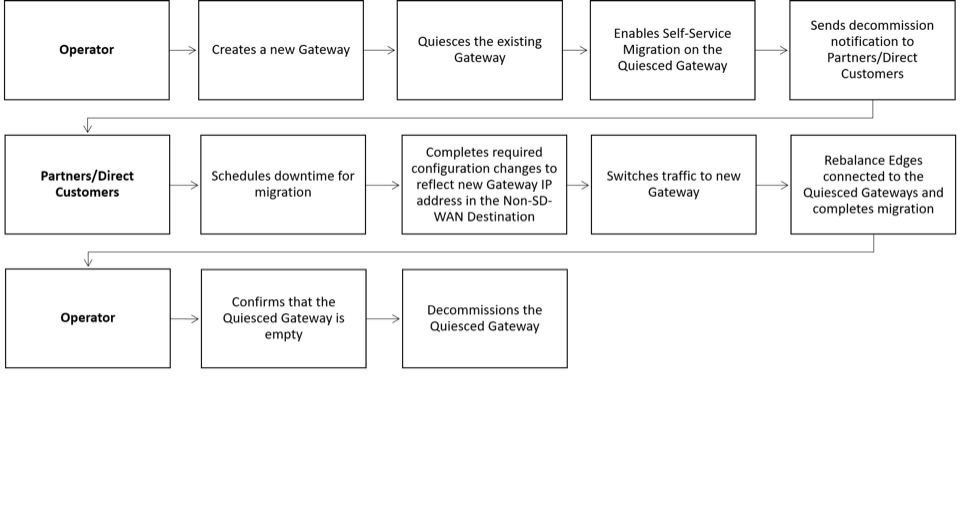
VeloCloud Gateway Migration- Limitations
- Partner Gateways do not support self-service migration.
- There a minimum service disruption occurs based on the time taken to switch Non SD-WAN Destinations (NSDs) from the quiesced Gateway to the new Gateway, and to rebalance the Edges connected to the quiesced Gateway.
- If configuring NSD with redundant Gateways and one of the Gateways quiesces, the redundant Gateway cannot replace the quiesced Gateway.
- During self-service migration of a quiesced Gateway, the replacement Gateway must have the same Gateway Authentication mode as the quiesced Gateway.
- For a customer deploying an NSD via Gateway with BGP configured, if you migrate the NSD to a different Gateway using the Self-Service Gateway Migration feature on the Orchestrator, the BGP configurations do not migrate and drops all BGP sessions post-migration.
In this scenario, the existing Gateway assigned to the NSD has a quiesced state and requires migration to another Gateway. Navigate to on the Orchestrator and initiates the Gateway Migration process to move the NSD to another Gateway. Post-migration, the BGP Local ASN & Router ID information does not populate the new Gateway and NSD BGP sessions do not come up with all routes lost and disrupts traffic using those routes until you manually recreates all BGP settings.
While the Gateway Migration feature accounts for many critical NSD settings, the NSDdoes not account for BGP settings and expect their loss post-migration.
Workaround: The migration of a Gateway should be performed in a maintenance window only. Prior to the migration, you should document all BGP settings and manually reconfigure these settings post-migration to minimize impact to customer users.
Migrate Quiesced Gateways
Before you migrate the Edges and NSDs,if configured, from the quiesced Gateway to the new Gateway, ensure you schedule a maintenance window as traffic may be disrupted during migration.
To avoid any service disruption, ensure you migrate to the new Gateway within the Migration Deadline in the notification email.
To migrate from a quiesced Gateway to a new Gateway, perform the following steps:
- In the SD-WAN service of the Enterprise portal, go to . The list of quiesced Gateways appears.
Figure 16. Quiesced Gateways 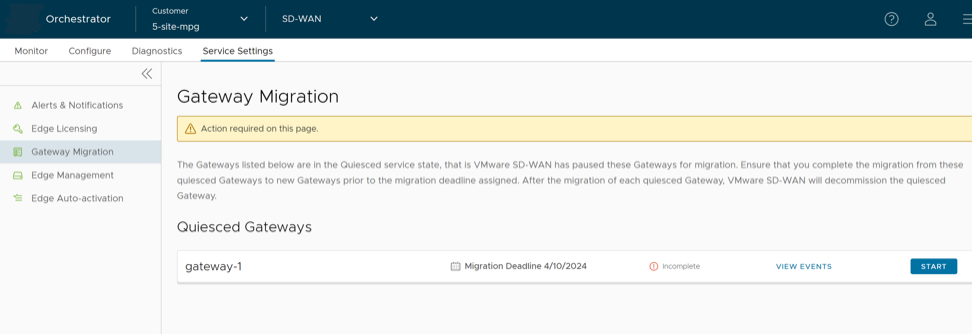
- Make the required configuration to all the NSDs configured through the quiesced Gateway.
Figure 17. Configure NSD Site(s) 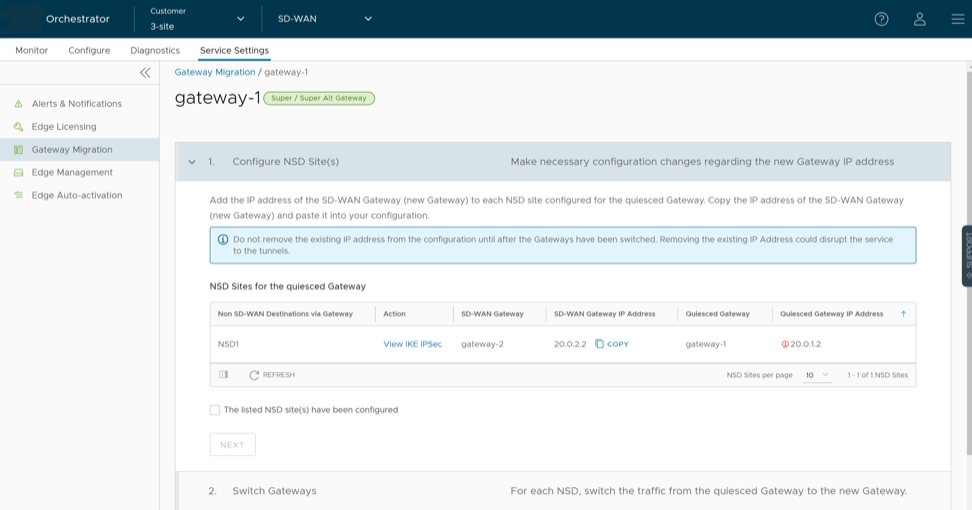
- Select the View IKE IPSec link to view a sample configuration for the NSD. Copy the template and customize it to suit your deployment.
- Add the IP address of the SD-WAN Gateway, a new Gateway IP, to each NSD configured for the quiesced Gateway.
For example, if you configured an NSD for AWS, you must add the IP address of the new Gateway in the NSD configuration on the AWS instance.
- After making the configuration changes to all the NSDs, select The listed NSD site(s) have been configured, and then select Next.
Note: The Configure NSD Site(s) option does not displays for NSDs configured automatically as well as for Gateways with a Data Plane role not attached to any NSDs. - Select each NSD and select Switch Gateway to switch the traffic from the quiesced Gateway to the new Gateway.
Figure 18. Switch Gateway 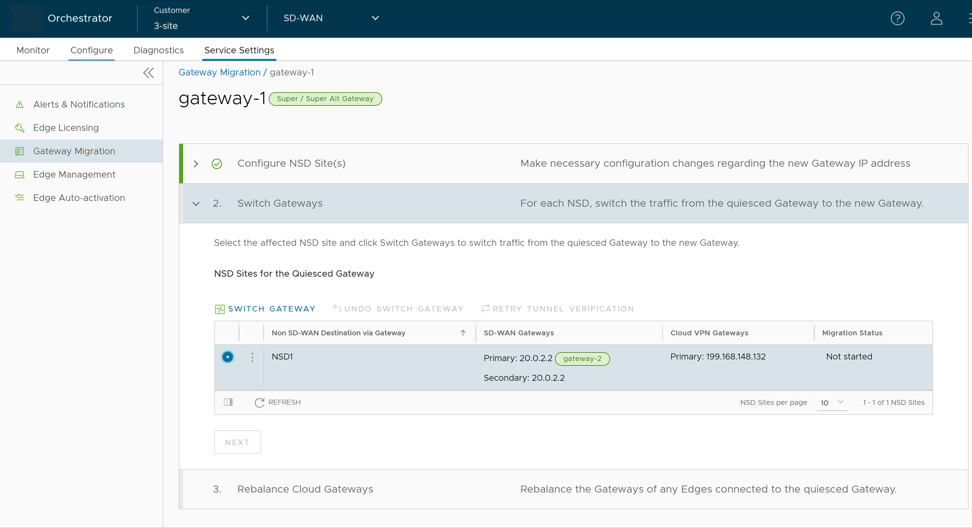
- In the Switch Gateways window, select The NSD site has been configured to confirm you made the required changes to the remote-end NSD configuration.
Figure 19. Switch Gateways 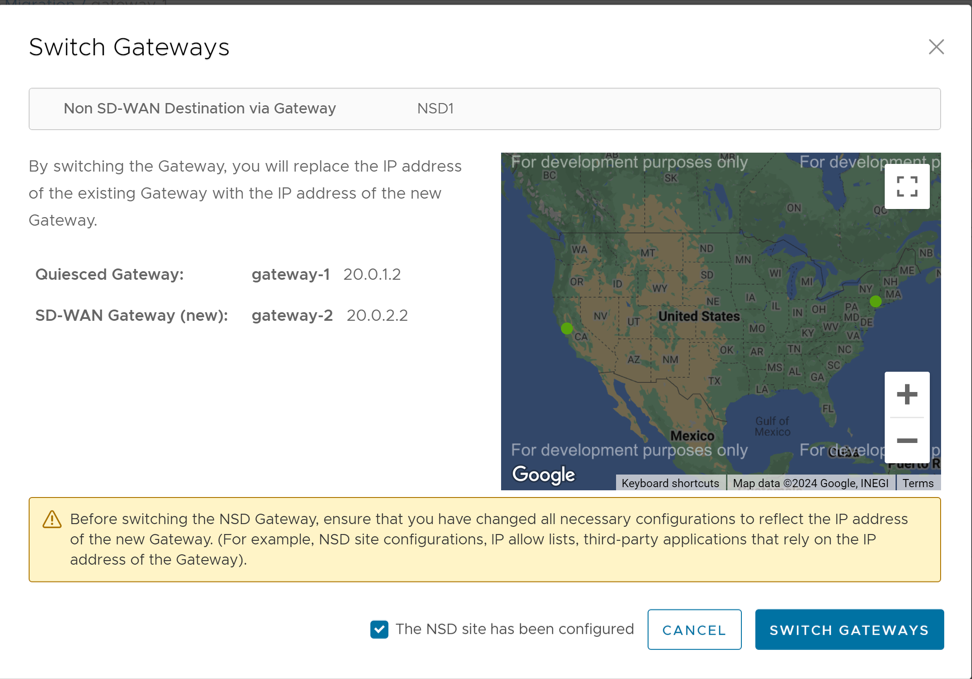 Note: This confirmation does not apply for automatically configured NSDs.
 - Select Switch Gateway.
It may take few minutes to verify the tunnel status. The IP address of the new gateway replaces the IP address of the quiesced Gateway so that the traffic switches to the new Gateway. The Migration Status changes to NSD Tunnels are up and running. If the Switch Gateway action fails, see Actions When Switch Gateway Action Fails.
Figure 20. Migration Status 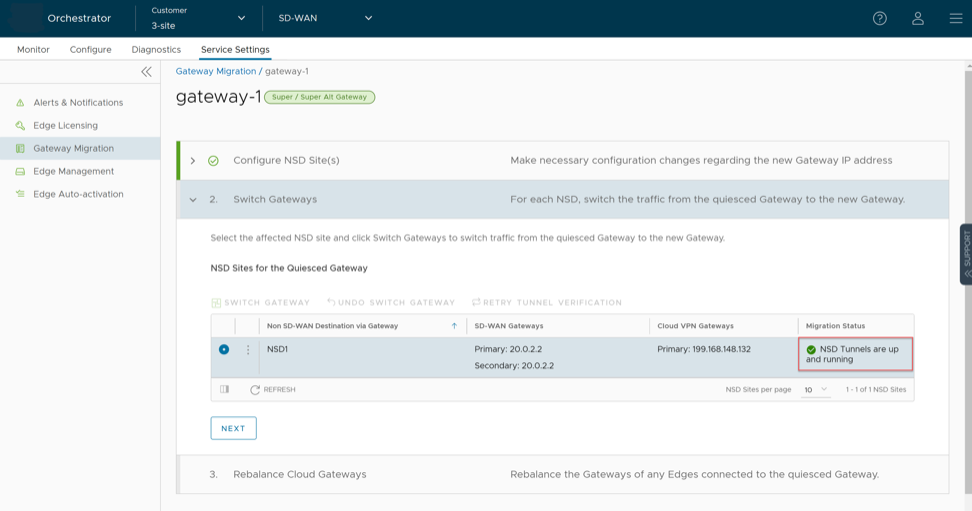
- Select Next.
Note: The Switch Gateway option does not display for Gateways with a Data Plane role not attached to any NSDs.
- Rebalance Cloud Gateways (Primary or Secondary or Super Gateways) of all Edges or the required Edges connected to the quiesced Gateway so that the Edges get reassigned to the new Gateway. You can rebalance Gateways from the page as well.
Figure 21. Rebalance Cloud Gateways 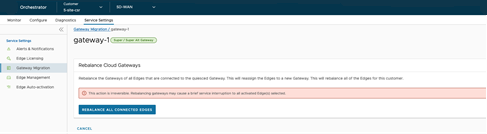 When rebalancing Super Gateways, all the Edges connected to the quiesced Gateway rebalanced, and does not allow rebalancing of selected Edges.
Figure 22. Rebalance All Edges 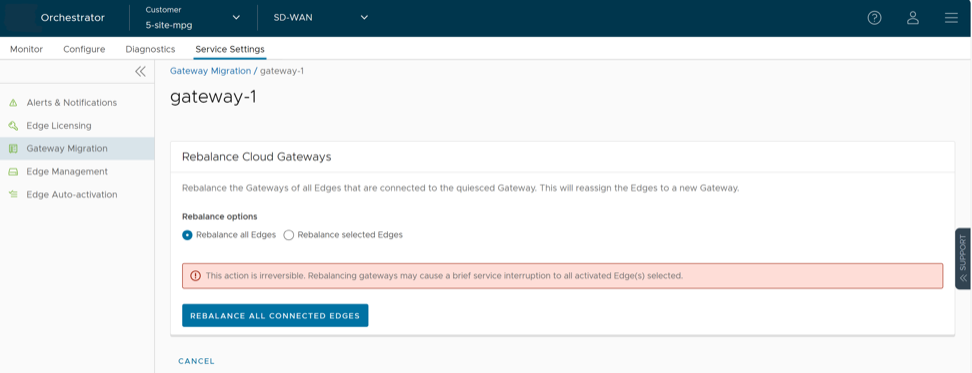
Figure 23. Rebalance Selected Edges 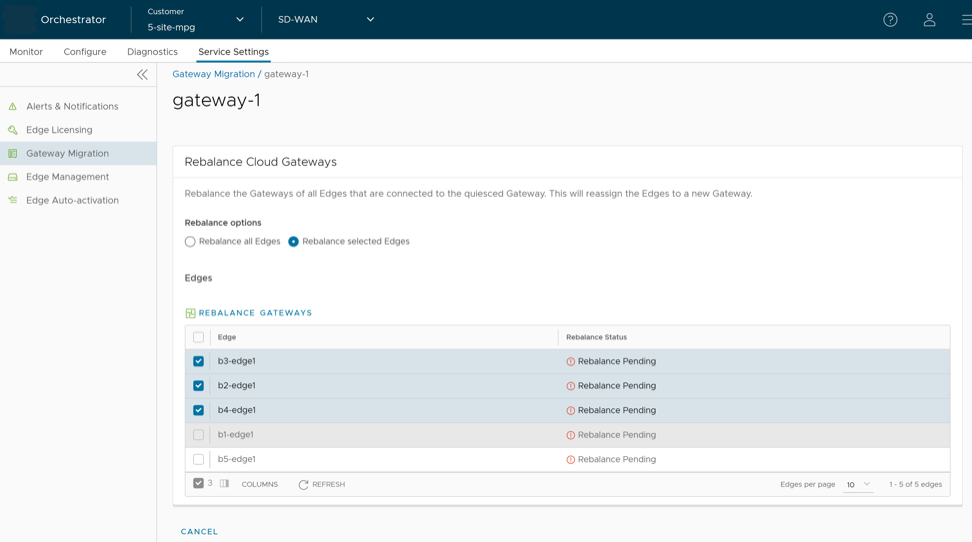 Select the Edges connected to the quiesced Gateway and select Rebalance Gateway to reassign Edges to the new Gateway.
Figure 24. Rebalance Gateway 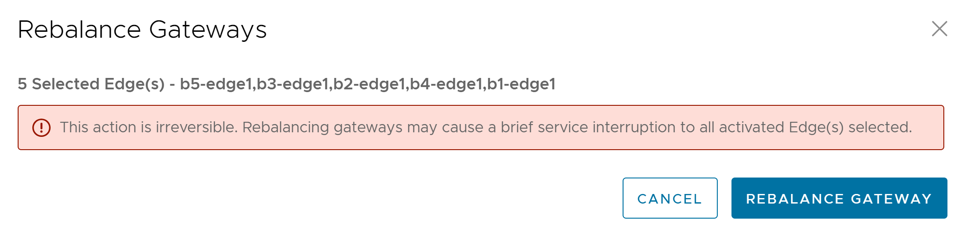
- In the Switch Gateways window, select The NSD site has been configured to confirm you made the required changes to the remote-end NSD configuration.
- Select Rebalance Gateway to complete the Gateway migration. The Edges connected to the quiesced Gateway migrate to the new Gateway.
Figure 25. Gateway Migration Complete 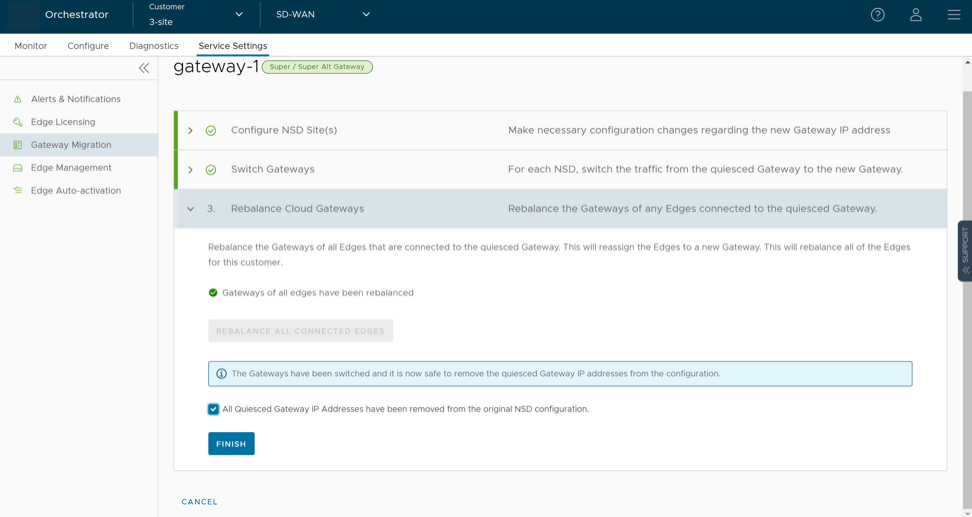
- Select Finish.
Go to the Gateway Migration page and select Review to review the migration steps, if required.
Figure 26. Review Gateway Migration 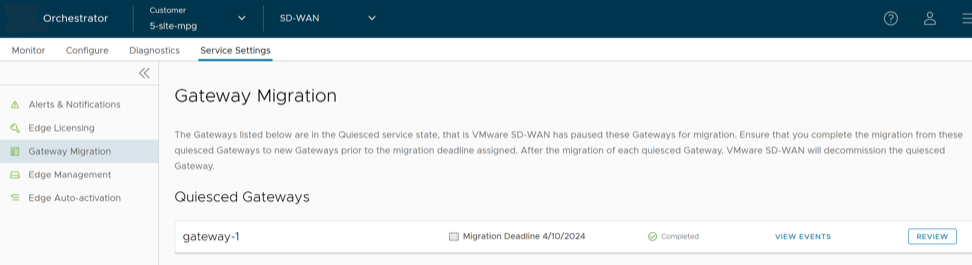
The migrated Gateways remain in this page until the Migration Deadline assigned for the quiesced Gateway. After the Migration Deadline, you can view the history of migration events in the page.
Figure 27. Monitor Events 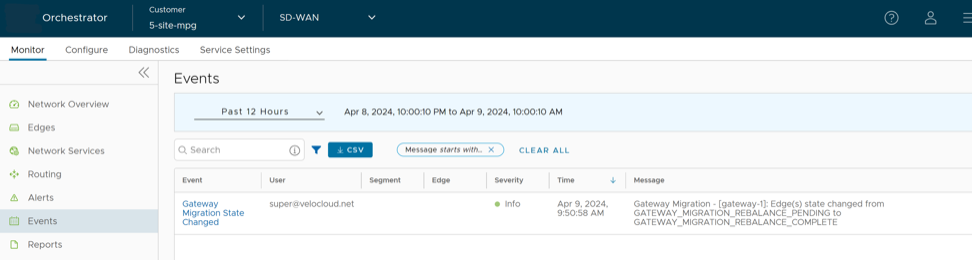
Actions When Switch Gateway Action Fails
Select View Events in the Gateway Migration page to view the history of migration events in the page.
Diagnostic Bundles for Gateways
Run diagnostics for Gateways to collect diagnostic bundles and packet capture files for troubleshooting purpose.
This topic contains the following sections:
Request Diagnostic Bundles for Gateways
To generate a new Diagnostic bundle, use the following steps:
- From the Request Diagnostic Bundle dialog, configure the following details and select Submit.
Figure 28. Request Diagnostic Bundle 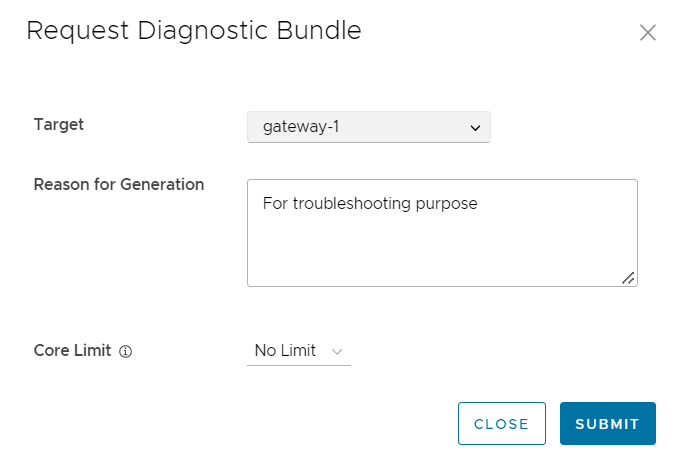
Table 7. Request Diagnostic Bundle - Options and Descriptions Option Description Target Select the target Gateway from the list. The data collects from the selected Gateway. Reason for Generation Optionally, you can enter your reason for generating the bundle. Core Limit Select a Core Limit value from the list, which reduces the size of the uploaded bundle when the Internet connectivity experiences issues. Note: The Request Diagnostic Bundle and Download Bundle options display only for Partners with Gateway activated management access. If the Gateway management access deactivates for a Partner, then the Partner can only view the generated Diagnostic bundles and download only the CSV file. The Partner cannot request a new Diagnostic bundle or download the generated bundle. To request Gateway Management access, Partners should contact the Operator Super user.The Diagnostic Bundles page displays the details of the generated bundle and the status.Figure 29. Diagnostic Bundles 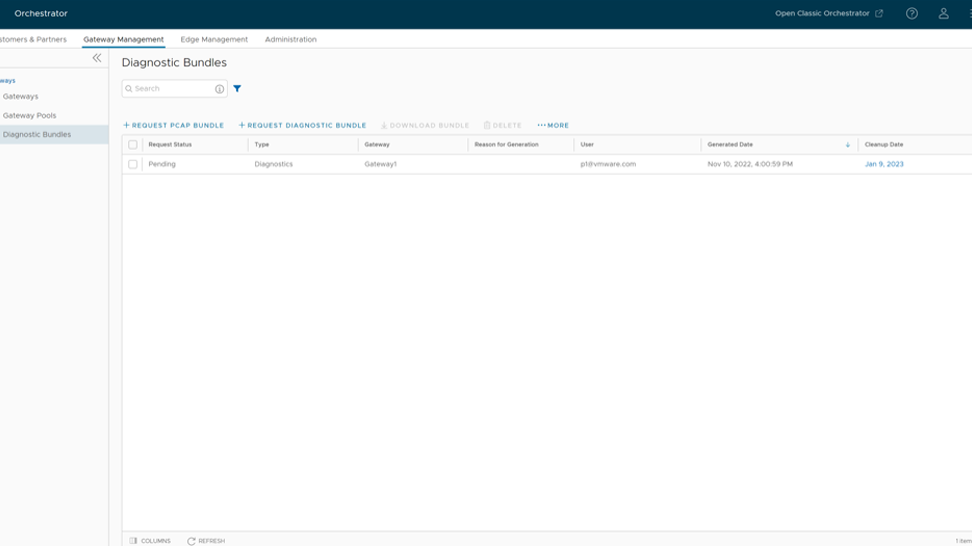
- Download Diagnostic Bundle- You can download the generated Diagnostic bundles to troubleshoot an Edge. To download a generated bundle, select the link next to Complete in the Request Status column or select the bundle and select Download Bundle. The bundle downloads as a ZIP file. You can send the downloaded bundle to a Arista Support representative for debugging the data.
- Delete Diagnostic Bundle- The completed bundles delete automatically on the date displayed in the Cleanup Date column. You can select the link to the Cleanup Date, or select the bundle and then to modify the Date.
Figure 30. Update Cleanup Date 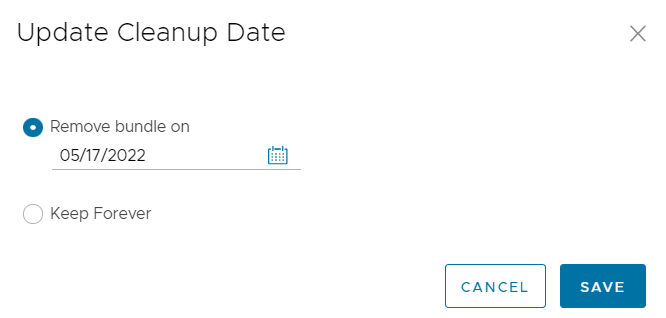
In the Update Cleanup Date dialog, specify the date to delete the selected Bundle.
If you want to retain the Bundle, select Keep Forever and the Bundle does not automatically delete.
To delete a bundle manually, select the bundle and select Delete.
Request Packet Capture Bundle for Gateways
To generate a PCAP bundle:
- In the Request PCAP Bundle dialog, configure the following details and select Generate.
Figure 31. Request PCAP Bundle 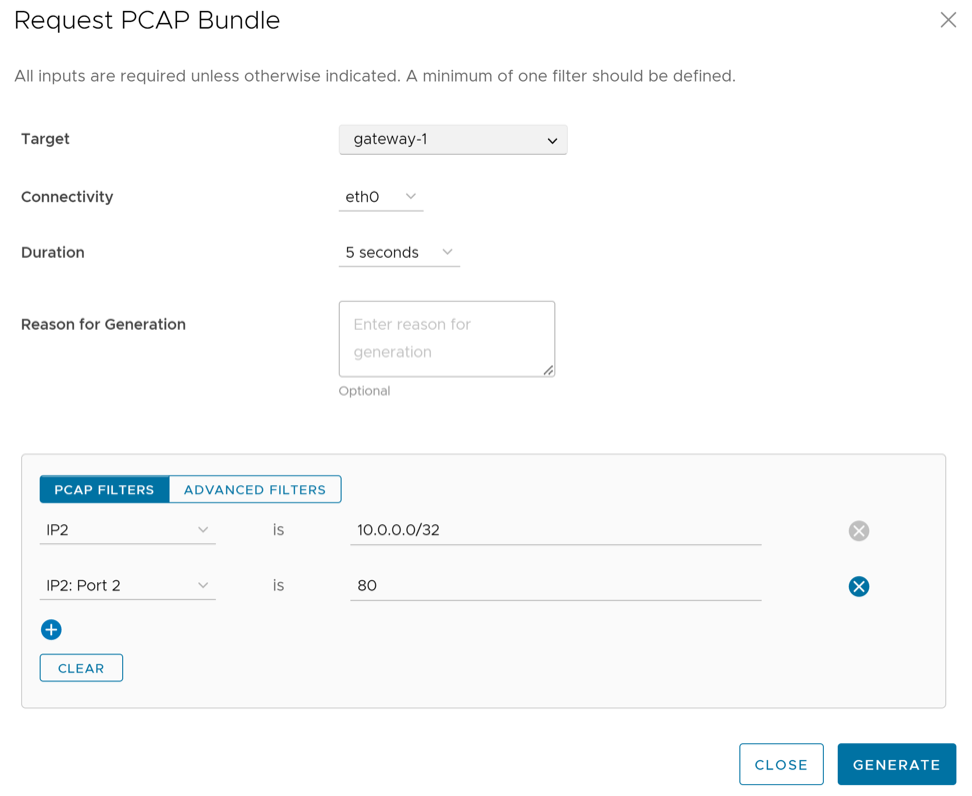
Table 8. Request PCAP Bundle - Options and Descriptions Option Description Target Select the target Gateway from the list. The packets collect from the selected Gateway. Connectivity Specify an Interface or an Edge ID from the list. The packets collect on the selected Interface or Edge associated to the Gateway. Duration Configure the time in seconds. The packets collect for the selected duration. The default value is 5 seconds. Reason for Generation Optionally, you can enter your reason for generating the bundle. PCAP Filters You can define PCAP filters to control the PCAP data generation by selecting from the following options: - IP1- Enter an IPv4 address, or IPv6 address, or Subnet mask.
- IP2- Enter an IPv4 address, or IPv6 address, or Subnet mask.
- IP1:Port1- Enter a Port ID associated with IP1.
- IP2:Port2- Enter a Port ID associated with IP2.
- Protocol- Select a protocol from the list.
Note: If you opt to use the PCAP filtering capability then you must define at least one filter.Advanced Filters You can define free form filters to control the PCAP data to be generated. Note: The Request Diagnostic Bundle and Request PCAP Bundle options only display for Partners with activated Gateway management access. If the Gateway management access deactivates for a Partner, then the Partner can only view the generated Diagnostic bundles and download the CSV file. The Partner cannot request a new Diagnostic or PCAP bundle or download the generated bundle. To request Gateway Management access, Partners should contact the Operator Super user.The Diagnostic Bundles page displays the details of the PCAP bundle being generated, along with the status.