
Series Status Indicators
LCD Panel Features
The system's LCD panel provides system information, status, and error messages to indicate if the system is operating correctly or needs attention.
The LCD backlight lights are blue during normal operating conditions. When the system needs attention, the LCD lights are amber and display an error code followed by descriptive text.
The LCD backlight turns OFF when the system is in standby mode. It can turn on by pressing the LCD panel's Select, Left, or Right buttons.
The LCD backlight remains OFF if LCD messaging is off through the iDRAC utility, the LCD panel, or other tools.
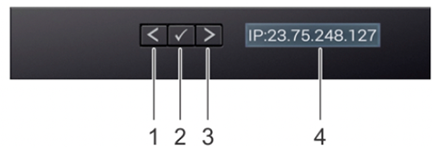
| Item | Button | Description |
|---|---|---|
| 1 | Left | Moves the cursor back in one-step increments. |
| 2 | Select | Selects the menu item highlighted by the cursor. |
| 3 | Right | Moves the cursor forward in one-step increments.
During message scrolling:
|
| 4 | LCD display | Displays system information, status, and error messages or iDRAC IP address. |
Status LED Indicators
| Item | Description |
|---|---|
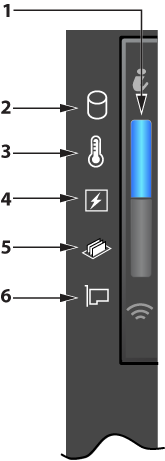
| 1 | The health indicator indicates the health status of the system. The indicator turns solid blue if the system is on and in good health. The indicator flashes amber if the system is on or on standby and any issue occurs (for example, a failed fan or drive). |
| 2 | The drive indicator flashes amber if an error related to the drive occurs. |
| 3 | The electrical indicator flashes amber if an electrical error occurs (for example, voltage out of range or a failed power supply unit or voltage regulator). |
| 4 | The temperature indicator flashes amber if a thermal error occurs (for example, temperature out of range or fan failure). |
| 5 | The memory indicator flashes amber if a memory error occurs. |
| 6 | The PCIe indicator flashes amber if an error related to the PCIe card occurs. |
| Icon | Description | Condition | Corrective Action |
|---|---|---|---|
 |
Drive Indicator | The indicator turns solid amber if there is a drive error. |
|
 |
Temperature Indicator | The indicator turns solid amber if the system experiences a thermal error (for example, the ambient temperature is out of range or there is a fan failure). | Ensure that none of the following conditions exist:
|
 |
Electrical Indicator | The indicator turns solid amber if the system experiences an electrical error (for example, voltage out of range or a failed power supply unit (PSU) or voltage regulator). | Check the System Event Log or system messages for the specific issue. If it is due to a problem with the PSU, check the LED on the PSU. Reseat the PSU. |
 |
Memory Indicator | The indicator turns solid amber if a memory error occurs. | Check the System Event Log or system messages for the location of the failed memory. Reseat the memory module. |
 |
PCIe Indicator | The indicator turns solid amber if a PCIe card experiences an error. | Restart the system. Update any required drivers for the PCIe card. Reinstall the card. |
iDRAC Direct LED Indicator Codes
The iDRAC Direct LED indicator indicates that the port is connected and part of the iDRAC subsystem.
You can configure iDRAC Direct using a USB to micro USB (type AB) cable to connect to your laptop or tablet. The following table describes iDRAC Direct activity when the iDRAC Direct port is active.
The iDRAC Direct LED indicator codes table describes the iDRAC status when it is solid green, flashing green, and turned off.
| iDRAC Direct LED Indicator Code | Condition |
|---|---|
| Solid green for two seconds. | Indicates that the laptop or tablet is connected. |
| Flashing green (on for two seconds and off for two seconds). | Indicates that the laptop or tablet connection is recognized. |
| LED indicator off | Indicates that the laptop or tablet is unplugged. |
iDRAC Quick Sync 2 Indicator Codes
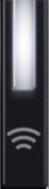
This table describes the Quick Sync status indicators. The indicator statuses are Off, which is the default state: Solid white, blinks white rapidly, blinks white slowly, blinks white five times rapidly and then turns off, solid amber, and blinking amber.
| iDRAC Quick Sync 2 indicator code | Condition | Corrective action |
|---|---|---|
| Off (default state) | Indicates that the iDRAC Quick Sync 2 feature is off. Press the iDRAC Quick Sync 2 button to turn on the iDRAC Quick Sync 2 feature. | Reseat the left control panel flex cable and check if the LED fails to turn on. |
| Solid white | Indicates that iDRAC Quick Sync 2 is ready to communicate. Press the iDRAC Quick Sync 2 button to turn it off. | If the LED fails to turn off, restart the system. |
| Blinks white rapidly | Indicates data transfer activity. | |
| Blinks white slowly | Indicates that a firmware update is in progress. | |
| Blinks white five times rapidly and then turns off | Indicates that the iDRAC Quick Sync 2 feature is disabled. | Check if iDRAC disables the iDRAC Quick Sync 2 feature configuration. |
| Solid amber | Indicates that the system is in fail-safe mode. | Restart the system. |
| Blinking amber | Indicates that the iDRAC Quick Sync 2 hardware is not responding properly. | Restart the system. |
NIC Indicator Codes
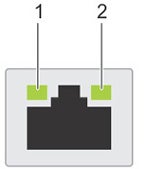
- Link LED indicator
- Activity LED indicator
| Status | Condition |
|---|---|
| Link and activity indicators are off. | The NIC is not on the network. |
| The link indicator is green, and the activity indicator is blinking green. | The NIC is on a valid network at maximum port speed, and data is being sent or received. |
| The link indicator is amber, and the activity indicator is blinking green. | The NIC is on a valid network at less than its maximum port speed, and data is being sent or received. |
| The link indicator is green, and the activity indicator is off. | The NIC is on a valid network at maximum port speed, and data is not being sent or received. |
| The link indicator is amber, and the activity indicator is off. | The NIC is on a valid network at less than its maximum port speed, and data is not being sent or received. |
| The link indicator is blinking green, and the activity is off. | NIC identity is enabled through the NIC configuration utility. |
Power Supply Unit Indicator Codes
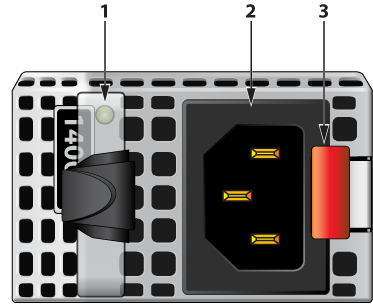
| 1 | AC PSU status indicator/handle |
| 2 | Socket |
| 3 | Release latch |
| Power Indicator Codes | Condition |
|---|---|
| Green | The PSU connects to a valid power source, and the PSU is operational. |
| Blinking amber | Indicates a problem with the PSU. |
| Not illuminated | The PSU does not have power. |
| Blinking green | The PSU handle blinks green through the firmware update.
CAUTION: Do not disconnect the power cord or unplug the PSU when updating the firmware. If the firmware update is interrupted, the PSUs do not function.
|
| Blinking green and turns off | When hot-plugging a PSU, the PSU handle blinks green five times at a rate of 4 Hz and turns off. It indicates a PSU mismatch concerning efficiency, feature set, health status, or supported voltage.
CAUTION: If the system has two PSUs, both PSUs must have the same type of label; for example, an Extended Power Performance (EPP) label. Mixing PSUs from previous generations of PowerEdge servers is not supported, even if the PSUs have the same power rating. This results in a PSU mismatch or failure to turn the system on.
CAUTION: Replace only the PSU with the blinking indicator when correcting a PSU mismatch. Swapping the PSU to make a matched pair can result in an error condition and unexpected system shutdown. You must turn off the system to change from a high output configuration to a low output configuration or vice versa.
CAUTION: AC PSUs support 240 V and 120 V input voltages, except for Titanium PSUs, which support only 240 V. When two identical PSUs receive different input voltages, they can output different wattages and trigger a mismatch.
CAUTION: If the system has two PSUs, they must be the same type and have the same maximum output power.
|