Configure Custom Applications
Starting from the 6.4.0 release, Partner users can create Custom Applications and use these applications in Business Policy and Firewall rules creation. This feature is similar to the Application Maps feature available for the Operator users.
- To access this feature, from the Partner portal, select .
The following screen appears:
Figure 1. Custom Applications 
- Use the new Custom Application to create Business Policy and Firewall rules at Edge or Profile level.
- For Edge level creation, go to .
- Select an Edge and then select .
- In the Application field, select Define, and choose the Custom Application from the menu.
- Select Save Changes.
- For Edge level creation, go to .
- Select an Edge and then select .
- Under Firewall Rules, select New Rule.
- In the Application field, select Define, and choose the Custom Application from the menu. Select Save Changes.
Note:
- The Application menu lists all applications created through both, Application Maps and Custom Applications. A label is displayed against all custom applications for easy identification purpose.
- The above steps are for Edge level creation of Business Policy and Firewall rules. You can follow the same steps for creating these rules at Profile level by navigating to .
The Used By Profile and Used By Edges columns on the Custom Applications main screen, display the details of the Profile and Edge(s) using the corresponding Custom Application. The Custom Applications associated with a Profile or an Edge cannot be deactivated.
- To monitor the Custom Applications, go to screen.
Create New Custom Application
You can create multiple Custom Applications.
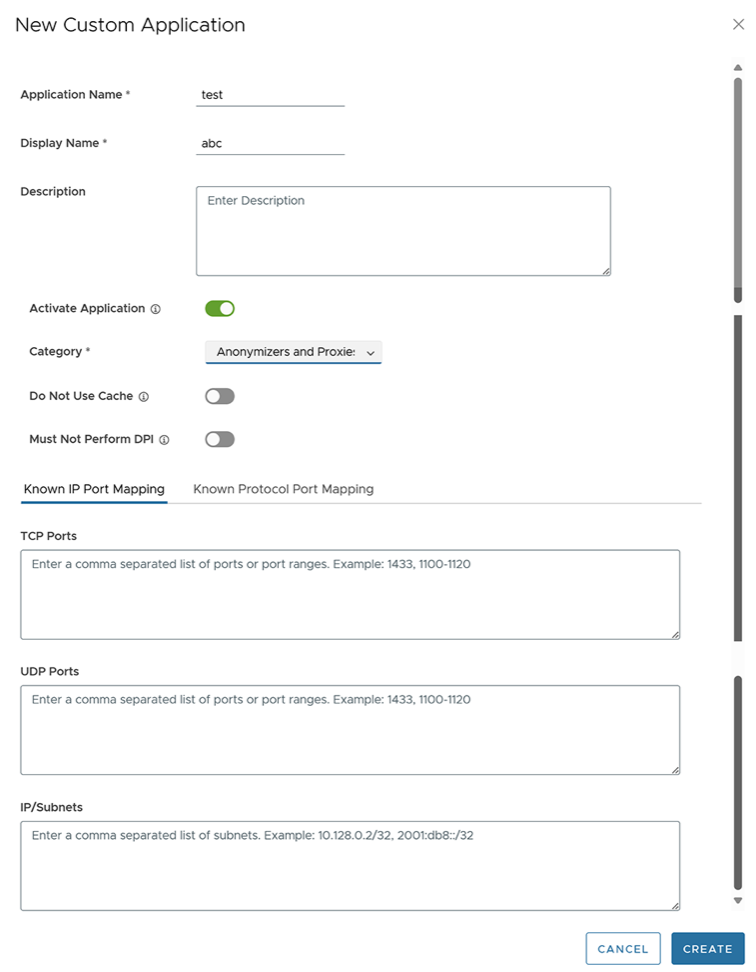
Follow the below procedure to create a new Custom Application:
- From the Partner Portal, select . The following screen appears:
Figure 2. New Custom Application