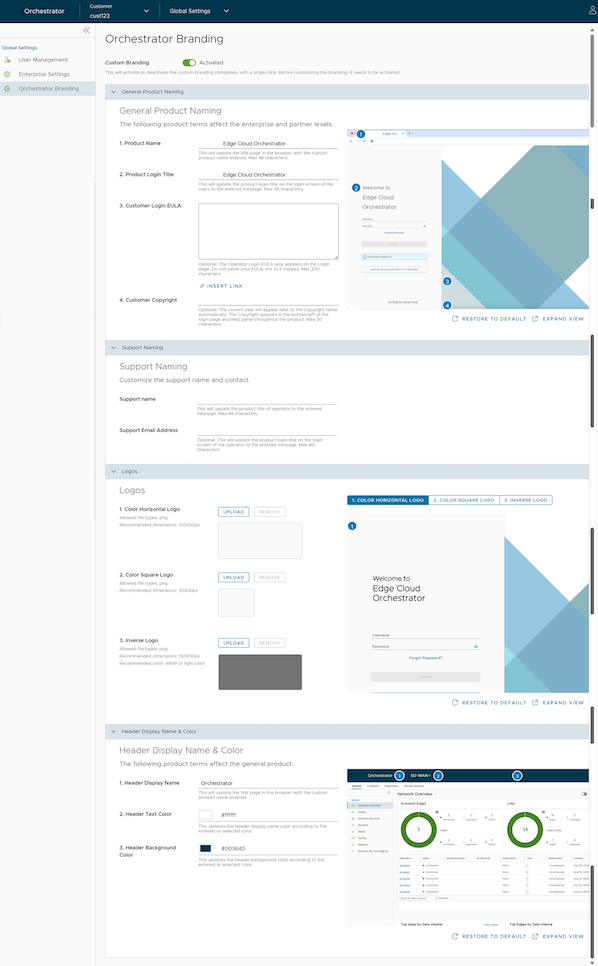
This section provides guidelines to customize the Orchestrator user interface (UI) to customer's company brand. An Enterprise user can brand the Orchestrator UI by applying the company’s name, logo, and colors at a customer level.
To enable Enterprise users to customize the orchestrator UI branding, deactivate the Operator only Branding feature. If this feature is turned on in the Orchestrator, contact the Operator to deactivate the Operator only Branding feature.
Note: Deactivating the Operator only Branding feature overrides any existing Operator branding settings.
As an Enterprise user, to customize the branding at a customer level, perform the following steps:
On the Enterprise portal, from the Services menu, select Global Settings.
Select Orchestrator Branding to display the Orchestrator Branding page.
Figure 1. Orchestrator Branding
To customize branding, activate the Custom Branding feature by turning on Custom Branding.
Users can customize the following branding aspects of the Orchestrator UI:
General Product Naming
Support Naming
Logos
Header Display Name and Color
As users customize the branding aspects, the changes apply to the Preview image on the right. Select Expand View to expand the preview image. Select Restore to Default to restore the default branding settings.
After users complete the branding customization, select Save Changes and refresh the Orchestrator to view the applied custom branding at the Enterprise level.