
Reports in CV-CUE
CV-CUE currently supports the following types of reports.
| WIPS | Wi-Fi | Alerts | Complaince |
|---|---|---|---|
| Reports about the Wi-Fi security posture | Reports about the Wi-Fi Clients, APs, Radios, WLANs,Applications, and Tunnels in the network. | Reports capturing Wi-Fi, WIPS, and System Alerts. | Reports to meet federal or industry-based regulatory compliance for Wi-Fi security. |
|
Inventory Reports:
Policies Enforcement Reports:
|
Inventory Reports:
Connectivity Reports:
|
Alert Reports:
|
Compliance Reports:
|
Scheduling Reports
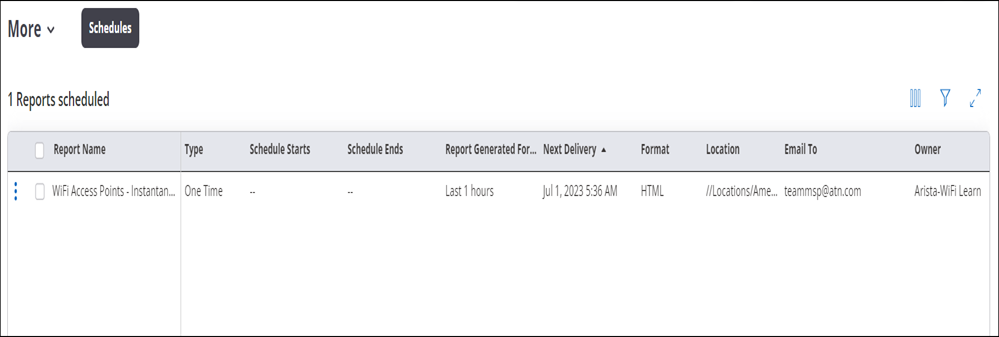
Report generation can be scheduled on a one-time or recurring basis. Users with Admin or Operator roles can schedule reports, while users with a viewer role can only view scheduled reports.
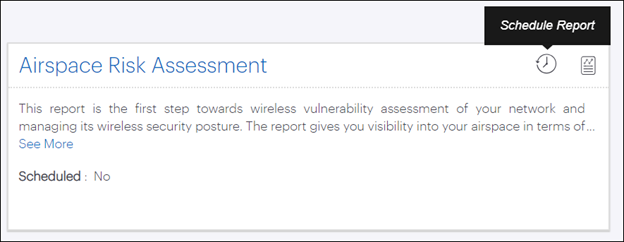
Clicking the Schedule Report icon opens a panel on the right-hand side of the screen, with a set of user-configurable parameters, as shown in the figure below.
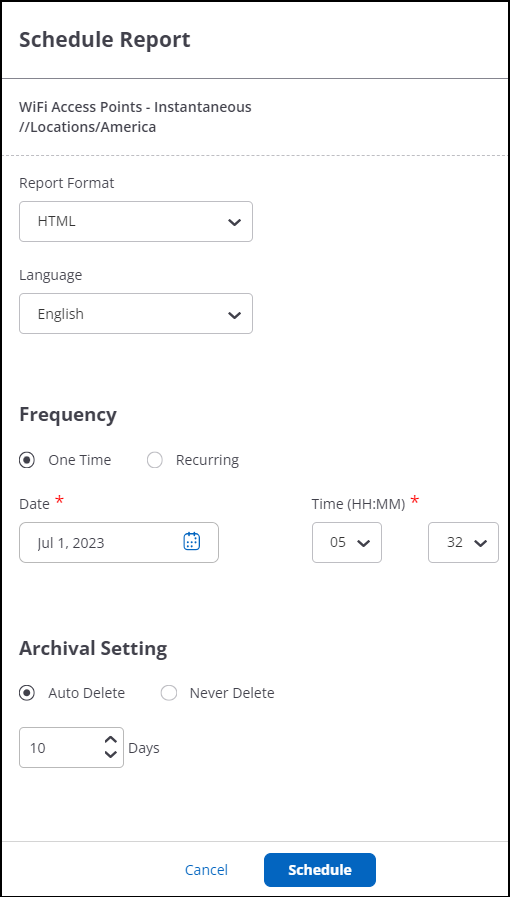
The email that delivers the scheduled report contains the URL of the report and its JSON bundle. By default, the report URL is available for a limited period; once it expires, you can upload the JSON bundle to the report rendering application to view the report.
If the archival setting is set to Never Delete, then the URL sent in the email will always be valid until the report is manually deleted from the page.
On-Demand Generation of Reports
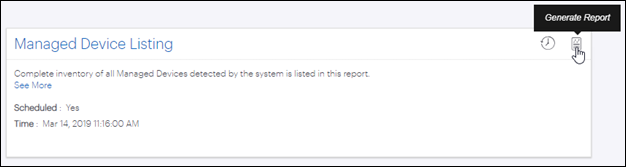
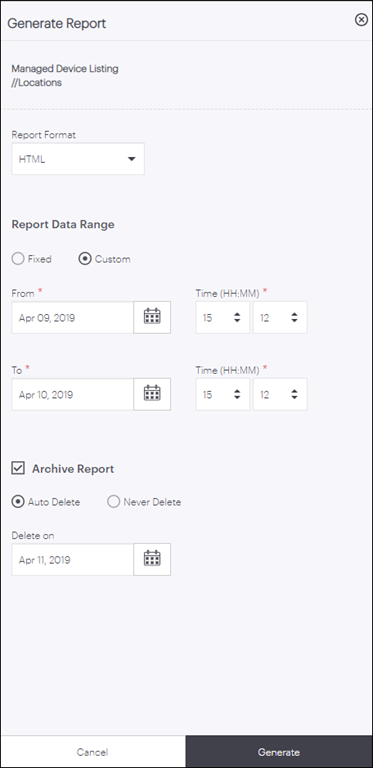
Clicking the Generate Report icon opens a panel on the right-hand side of a screen with a set of parameters to be configured as shown in the image below.
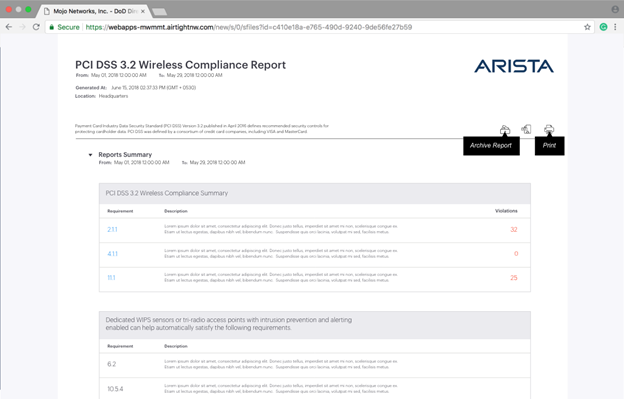
Sample HTML Report
Saving a Report
Reports can be saved so that they can be viewed at a later time. When the report storage quota of a user is consumed, no more reports can be saved unless older reports are deleted. You can define the date when a saved report should be deleted or you can also disable the auto-deletion for a report.
- Superusers - can view all saved reports.
- Administrators - can view reports saved by them and for them.
- Operators - can view reports saved by them and for them.
- Viewers - cannot save or view a saved report.
Filter Report Data
You can apply filters to report data before generating or scheduling a report. Applying filters before generating a report helps streamline the data, speeds up report generation, and improves its readability. With filters, you can create a customized report based on your specific needs.
- WiFi Reports, except WiFi Multifunctional Radios - Instantaneous.
- WIPS Reports, except Wireless Vulnerability Assessment and Airspace Risk Assessment.
Filters are not yet supported for Alerts and Compliance Reports.
Generating or Scheduling a Filtered Report
- Go to the report you want to generate or schedule.
- Click Generate or Schedule. The Report Panel opens.
- Select your Report Format, Date Range, and Archival Settings. For scheduled reports, set the frequency and the time details.
- Click Filters.
 The Filter panel opens.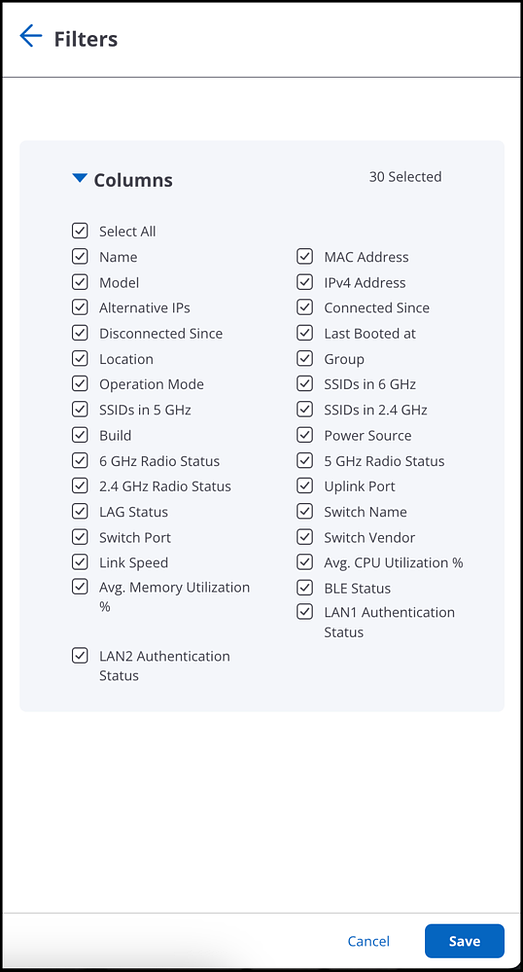
- Select the Columns to add to your report.
- Depending on the report, you can refine the data using SSID, Client Name,
Client User Name, or Associated AP Name filters.

- Apply your filters and click Save.
- Click Generate or Schedule.
After generating, you can download your report or receive it via email.
Wi-FI Report Filters
The following table shows the filters supported on different reports:
| Report Name | Column Filters | SSID Filter | Other Filters |
|---|---|---|---|
| WiFi Access Points - Instantaneous | Yes | No | No |
| WiFi Tunnels - Instantaneous | Yes | No | No |
| WiFi Clients - Instantaneous | Yes | Yes |
|
| WiFi Access Point Details - Instantaneous | Yes | No | No |
| WiFi Radios - Instantaneous | Yes | No | No |
| WiFi Multifunctional Radios - Instantaneous | No | No | No |
| WiFi Clients - Historical | Yes | Yes | Client User Name |
| Client Connectivity - Historical | Yes | Yes |
|
| Client Association | Yes | Yes | Associated AP Name |
| Client Visibility | Yes | No | Sensor Name |
| Client Application Experience Report - Historical | Yes | Yes | Client User Name |
WIPS Reports
| Report Name | Column Filters | SSID Filter | Other Filters |
|---|---|---|---|
| WIPS Managed WiFi Devices - Instantaneous | Yes | No | No |
| WIPS Networks - Instantaneous | Yes | No | No |
| Managed WiFi Device Inventory | Yes | No | No |
| WIPS Clients - Instantaneous | Yes | Yes |
|
| WIPS Access Points - Instantaneous | Yes | No | No |
| Airspace Risk Assessment | No | No | No |
| Wireless Vulnerability Assessment | No | No | No |
| Security Status | Yes | No | No |
| Wireless Intrusion Prevention Summary | Yes | No | No |
| Access Point Classification | Yes | No | No |
| Client Classification | Yes | No | No |
| WIPS Alerts | No | No | No |